Qwen Image Dominates Text to Image 700 Tests Reveal Why Its Better Than FLUX Presets Published
Full tutorial link > https://www.youtube.com/watch?v=R6h02YY6gUs
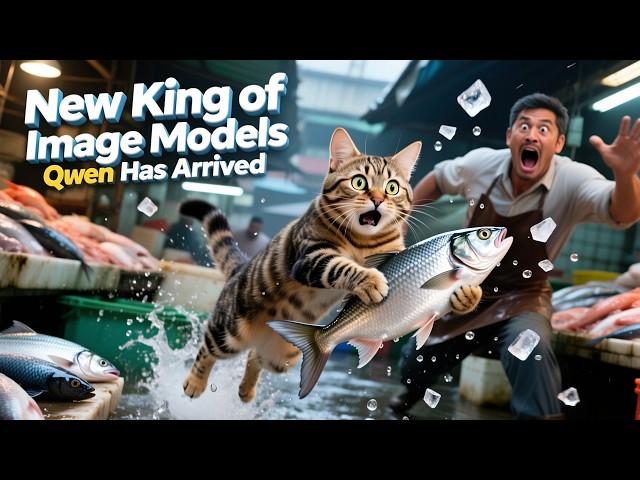











I have done over 700 generations to find out the very best configuration for generating the very best images in Qwen Image model. After this research I have published 1-click to use presets with maximum quality and realism. Furthermore, I have compared Qwen Image model to the current king FLUX Dev and FLUX Krea Dev. I have concluded that the new king is Qwen Image and it is the future. This full step by step tutorial and guide video is for you to start generating the most amazing images with Qwen Image with most easy way.
🔗Follow below link to download the zip file that contains SwarmUI installer and AI models downloader Gradio App - the one used in the tutorial for downloading models, presets, prompt generator guide txt
🔗Follow below link to download the zip file that contains ComfyUI 1-click installer that has all the Flash Attention, Sage Attention, xFormers, Triton, DeepSpeed, RTX 5000 series support
🔗 Python, Git, CUDA, C++, FFMPEG, MSVC installation tutorial - needed for ComfyUI
🔗 SECourses Official Discord 10500+ Members
🔗 Stable Diffusion, FLUX, Generative AI Tutorials and Resources GitHub
🔗 SECourses Official Reddit - Stay Subscribed To Learn All The News and More
Video Chapters
00:00:00 Introducing Qwen Image: The New King of Text-to-Image
00:00:22 Why Qwen is King: 700+ Generations & Extensive Testing
00:00:45 Qwen vs FLUX Models: A Detailed Comparison of Strengths & Weaknesses
00:01:15 One-Click Setup: Easy Installation & Pre-configured Presets
00:01:31 Secret to Perfect Prompts: A Surprising Automatic Generation Method
00:01:53 Low VRAM? No Problem with SwarmUI & ComfyUI Backend
00:02:21 Real-Time Image Generation Showcase (Dragons & Warriors)
00:03:14 Tutorial: How to Automatically Generate Prompts from Reference Images
00:03:41 Essential Prerequisites: Updating SwarmUI & ComfyUI
00:04:07 Step 1: Download & Extract the Newest Zip File (Version 62)
00:04:27 Step 2: Running the Update Scripts for ComfyUI & SwarmUI
00:05:07 Step 3: Importing the New Qwen Presets into SwarmUI
00:05:35 Exploring the New Presets: High Quality vs Realism Fast
00:06:21 Step 4: Downloading the Required Qwen Core Models
00:07:05 Low VRAM Alternative: Using the Q4 Quantized Model
00:07:34 Important Troubleshooting: How to Fix Potential Black Image Bugs
00:08:07 Qwen Technical Details: Resolution Requirements & Advantages
00:08:55 Analyze My Tests: Accessing & Using the Comparison Grids
00:09:53 Amazing In-Image Text Generation: Creating YouTube Thumbnails with Qwen
00:11:43 In-Depth Comparison Grid: Qwen vs FLUX Dev & FLUX Krea
00:12:25 Visual Comparison: Anime, Dinosaurs, and Complex Scenes
00:12:53 Realism Comparison: Where FLUX Krea Still Wins (For Now)
00:13:13 Mind-Blowing Prompt Following: Qwen's Biggest Strength
00:14:07 The Future of Qwen: Fine-Tuning & LoRA Training with Kohya
00:14:34 Final Thoughts & My Remote Generation Setup (Vast.ai)
00:15:40 Pro Tip: Using Wildcards for Automated Batch Image Generation
00:16:11 Final Image Showcase & Conclusion
Exploring Qwen-Image: Alibaba's Breakthrough in AI Image GenerationIn the rapidly evolving field of artificial intelligence, Alibaba's Qwen team has unveiled Qwen-Image, a groundbreaking 20-billion-parameter foundation model for image generation.
At its core, Qwen-Image excels in superior text rendering capabilities. Unlike many predecessors that struggle with legible text, it handles multi-line layouts, paragraph-level semantics, and fine-grained control over fonts, styles, and positioning.
This makes it ideal for creating stunning graphic posters, advertisements, and designs with embedded text in both English and Chinese.
It also extends to multimodal tasks such as view synthesis, image segmentation, and depth estimation, making it a versatile tool for creative and technical applications.
Early benchmarks show it outperforming other open-source models in text-heavy scenarios.
For industries, Qwen-Image democratizes high-quality image creation. Graphic designers can rapidly prototype posters, while marketers generate localized content with accurate bilingual text. In education and entertainment, it enables custom visuals for stories or simulations.As AI image tools proliferate, Qwen-Image stands out for its precision and accessibility.
Some background music by NoCopyrightSounds : https://gist.github.com/FurkanGozukara/681667e5d7051b073f2e795794c46170
-
00:00:00 Greetings everyone. Today I'm going to introduce you to Qwen Image, which is the newest king of
-
00:00:06 the text-to-image models. When I say king, it is not an exaggeration. This is the newest,
-
00:00:14 very best model to generate images from text prompts. And how I am sure of it?
-
00:00:22 I have done over 700 generations of Qwen Image and compared the very best presets
-
00:00:31 of this model with FLUX Dev and FLUX Krea model. Preparation of the very
-
00:00:38 best workflow for this model took a lot of time, but the results are mind-blowing.
-
00:00:45 This model, Qwen Image, produces better images than the FLUX base dev model in
-
00:00:52 every case. Moreover, when it comes to understanding complex scenes and prompts,
-
00:00:59 this model is unchallenged. The only weak side of this model is that currently, it is not as
-
00:01:05 realistic as FLUX Krea model, but other than that, in every case, this model produces amazing images.
-
00:01:15 To make it easy for you, I have prepared one-click to download these models and one-click to apply
-
00:01:24 presets and right away use it. You see, currently I am generating some random images real-time and
-
00:01:31 they are just excellent quality. And I even didn't write the prompts of these images. How
-
00:01:37 I made these prompts will surprise you. It is just so easy and so elegant, and it is working amazing.
-
00:01:46 All of these images are real-time being generated and you are seeing them as they are generated.
-
00:01:53 It is not, of course, too fast because it is a big model, but since we are using SwarmUI with
-
00:02:00 ComfyUI backend, as long as you have sufficient amount of RAM memory, you will be able to generate
-
00:02:07 amazing images even on low VRAM GPUs. You see, these are the previews of the images that are
-
00:02:14 being generated and as they get generated, we will see them. For example, this is another new image.
-
00:02:21 This is another amazing image. This is another amazing image. I mean, look at this detail.
-
00:02:27 Look at the anatomy, the accuracy, everything is just perfect. You see, this is the tail and this
-
00:02:34 is a full dragon. I mean, dragons are not even real. However, this model knows it very well.
-
00:02:41 And this is a warrior challenging to the dragon. I mean, look at this image. Look at the quality.
-
00:02:48 This model is unchallenged, and this is just released. With the fine-tuning,
-
00:02:53 with the new LoRAs, this model will get only better. And look at the contrast. It is able
-
00:03:00 to generate two completely different images in a single image like this. And I even didn't write
-
00:03:06 the prompts. They are all automatic generations, and I'm going to show you how I made it right now.
-
00:03:14 I just uploaded the images from CivitAI. You see, like this, and I gave this prompt: "Write prompt
-
00:03:22 for each attached image and separate each prompt with this." Whatever you want, you can make it new
-
00:03:27 line, but the key thing here is that I am using Video Models Prompt Generate guidance, which I
-
00:03:34 have introduced you in the previous video. So, how you are going to use this model in SwarmUI?
-
00:03:41 If you have watched our latest tutorial about Wan 2.2, you already know, but if you haven't yet,
-
00:03:48 I recommend to watch it. For installation of SwarmUI and ComfyUI, we have this tutorial.
-
00:03:54 Both of them will be in the description of the video, so you will be able to quickly find it.
-
00:04:00 So, all you need to do is install them and use our newest zip file. Our newest
-
00:04:07 zip file is located here. The link will be in the description of the video. Download SwarmUI
-
00:04:12 Model Downloader version 62. As usual, extract it into your previous installation folder or
-
00:04:20 wherever you want to install. Right-click, I will use this one, extract here, override files. Then,
-
00:04:27 this is super important. To be able to use this new model, you need to update your ComfyUI and
-
00:04:34 SwarmUI. For updating ComfyUI, I will use Windows Update ComfyUI, as usual, and it will update it
-
00:04:40 automatically for me. Don't forget that. Then, you also need to update SwarmUI. For SwarmUI updating,
-
00:04:48 we have Windows Update SwarmUI, and this will update my SwarmUI as usual. If you are first-time
-
00:04:55 installing, watch those tutorials, but if you already followed our requirements tutorial,
-
00:05:01 all you need to do is just Windows install for ComfyUI and Windows install SwarmUI.
-
00:05:07 Once your SwarmUI starts, you need to import new presets. You see, there is "Import Preset." This
-
00:05:14 is important. It is not automatically imported. So, choose file, go back to your extraction of
-
00:05:20 your zip file, and you will see that there is "Amazing SwarmUI Presets Version 9." Select it,
-
00:05:27 overwrite and import. Then you will get these two presets: Qwen Image Realism Fast and Qwen Image
-
00:05:35 High Quality. Then all you need to do is just quick tools, reset params to default,
-
00:05:40 direct apply, and type your prompt. That's it. Or direct apply and type your prompt. You see,
-
00:05:46 Qwen Image High Quality also has default negative prompts. However, Qwen Image Realism
-
00:05:53 Fast doesn't have it because it is using CFG scale 1. Therefore, the negative prompts is not working.
-
00:05:59 And exactly, I am using that preset right now. The selected preset is Qwen Image
-
00:06:06 High Quality. It is generating, you see, new images are being generated as I am recording
-
00:06:12 this video and as we are watching it. Amazing quality. Prompt following,
-
00:06:18 the prompt understanding of this model is just mind-blowing.
-
00:06:21 So, what about the models that you need to download? To download the models,
-
00:06:25 you need to double-click "Windows Start Download Models Up.bat" file and start
-
00:06:30 it. Never run any of my installers as administrator. Always run them with
-
00:06:37 double-clicking. Do not forget that. It will install necessary libraries and start the newest
-
00:06:42 version of our downloader, which is SwarmUI Model Downloader version 62. And in here,
-
00:06:48 all you need to do is go to SwarmUI bundles and Qwen Image Core bundle. Download it. This
-
00:06:55 will download the Qwen Image GGUF Q8 model, Qwen necessary clip model, and Qwen VAE file.
-
00:07:05 If your VRAM is low and if you don't want to use block swapping a lot,
-
00:07:09 what you can do? Go to image generation models, go to Qwen image models and download Qwen Image
-
00:07:15 Q4 GGUF file. You see these are the sizes. This model quality is also excellent. However,
-
00:07:22 if you have sufficient amount of RAM memory, you can use Q8 and not lose
-
00:07:27 any quality. The SwarmUI will just work good with automatic block swapping of the ComfyUI backend.
-
00:07:34 Currently, if you use --use-sage-attention, it may fail. So, try with it. If you get black output,
-
00:07:42 just remove it because it is getting updated. It is not fully working yet. So, this optimization
-
00:07:48 may cause black output. Moreover, in the server configuration, in the very bottom, if you get
-
00:07:55 black outputs, disable this "Allow GPU-specific optimizations." The team of ComfyUI is working to
-
00:08:02 fix these issues. It could be fixed when you are watching this, but I am just letting you know.
-
00:08:07 One another restriction of this model is that the resolution has to be divisible to 16. Its
-
00:08:14 default resolution is 1328 to 1328, so it is about 70% bigger than the FLUX model. So,
-
00:08:23 when we fine-tune or when we LoRA this model, hopefully, it is coming very soon hopefully,
-
00:08:30 it will be able to learn much more details than the FLUX itself because it has a better base
-
00:08:36 resolution. And you see the quality is amazing. The realism is not there yet, but when we
-
00:08:42 fine-tune or when we LoRA train, it will be there. I am pretty sure. However, this is the new leader
-
00:08:48 of the image generation models from text. And when I say that, I am not exaggerating or I am
-
00:08:55 not saying it out of nothing. When you follow the post, the link will be in the description
-
00:09:00 of the video, you will see that I have shared the grid tests that I have made. You need to put them
-
00:09:06 into your SwarmUI > output > local > grids. When you put them here, they will be ready to follow.
-
00:09:14 And then restart your SwarmUI, go to Tools > Grid Generator, and load grid config, and you
-
00:09:20 will see the grids here. There are lots of grids, not only this one. When you download it, you will
-
00:09:26 see lots of grids like here. You see Qwen Image and other ones. You see, I did massive number of
-
00:09:32 grid testing, and this is just one of them. And after analyzing all the results, I came up with
-
00:09:39 these presets. So, this was a huge work done by me. So, you can also analyze every image, every
-
00:09:46 configuration that I have tested yourself on your computer with highest quality and see yourself.
-
00:09:53 Furthermore, this model is amazing at writing text. You see, "New King Image
-
00:10:02 Models Qwen has arrived." This is how I have generated the thumbnail of this video. So,
-
00:10:10 this is the new thumbnail generation, if you ask my opinion. And what I did was extremely lazy.
-
00:10:17 I just added this to the random prompts. Let me show you. So, with a better approach, you can get
-
00:10:25 even better text. The image has the following text with an amazing 3D font: "New King of Image Models
-
00:10:32 Qwen has arrived." And then I just added the other prompts. So, this is a very lazy way of working.
-
00:10:40 And if you look at the final prompt, it is like this. Let me show you so you will see what I
-
00:10:46 mean. The image has the following text with an amazing 3D font, blah blah blah. You see,
-
00:10:51 this is a very lazy way of writing the prompt and even at this way, it is able to generate
-
00:10:58 amazing images. I mean, look at the beauty of this text written on the image. This is just amazing.
-
00:11:04 In some cases, it is failing to write "Qwen" accurately, probably because it is not an
-
00:11:09 English word. However, as you try more, you will get the perfect text like this. And this
-
00:11:16 is another one. I mean, look at this. It is also matching the text color and style with the rest of
-
00:11:23 the image as well. Making something like this would take a lot of time, but now with Qwen,
-
00:11:30 we can have amazing images with a beautiful text written on them like this. So, with Qwen,
-
00:11:37 now you can generate your thumbnails with just prompting and not spending any time.
-
00:11:43 And finally, I have compared my very best preset of FLUX Dev, FLUX Krea Dev,
-
00:11:51 Qwen Image Realism Fast, and Qwen Image High Quality. So when we analyze the results, FLUX Dev
-
00:11:57 is inferior to Qwen image at every case, whatever you can think of. The FLUX Krea Dev has better
-
00:12:04 realism at certain prompts than the Qwen. I can say that. For example, we see that FLUX Krea has
-
00:12:11 a better realism, as you can see, than the Qwen Realism or Qwen Highest Quality. But you know the
-
00:12:18 resolution is 70% lower than the Qwen image. For example, this is not a very realistic scene. We
-
00:12:25 can say that at this scene, the Qwen is just much better. At anime, again, Qwen image shines. And we
-
00:12:33 can say that when it comes to not very realistic images like dinosaurs, which we do not have any
-
00:12:38 realistic image, again, the Qwen shines. You see, this is much better than the FLUX Krea, and it is
-
00:12:46 much more accurate. Or this is like a 3D scene. Again, the Qwen is shining, much, much better.
-
00:12:53 But when we come to the human, FLUX Dev is, as we know, it is not very good. FLUX Krea is excellent,
-
00:12:59 shines at the human, and Qwen is not there yet. I mean, the realism is not there yet for humans,
-
00:13:06 but the base is so good. So with LoRAs, which I assume they will pop anytime, it will get
-
00:13:13 much better, or with just fine-tuning. But when it comes to understanding prompts, it shines. I mean,
-
00:13:19 look at this prompt. Just pause the video and read it. This is FLUX Dev. Look at this. This is FLUX
-
00:13:25 Krea. I mean, nothing like that. And this is Qwen Realism, and this is Qwen High Quality. Qwen High
-
00:13:34 Quality is just mind-blowing. It is able to follow the prompt amazingly. It is just so perfect.
-
00:13:40 I shared these grids, they are in the post, they are public, you don't need to be even subscribers,
-
00:13:45 so you can just download and look at your computer. Again, this is a realism-related
-
00:13:50 prompt, and the FLUX Dev, as we know, not very good. FLUX Krea, really good,
-
00:13:57 realistic. Qwen Realism preset we prepared, it is also pretty decent at this prompt,
-
00:14:03 and this is Qwen High Quality. The realism is not there yet.
-
00:14:07 Hopefully, I will make a full tutorial and a very easy-to-use graphical user interface to
-
00:14:12 train Qwen with Kohya's Musubi Tuner. Kohya is working on that, and we will be able to generate
-
00:14:19 amazing LoRAs and amazing fine-tunes from Qwen. I am pretty confidently saying to you that this
-
00:14:26 is our new very best text-to-image model which we will use from this moment. And let's see some of
-
00:14:34 the more generations that have been completed. Currently, I am on vacation, therefore I am not
-
00:14:40 on my regular computer. So, I am using Vast.ai compute to generate these images. But you know
-
00:14:46 I have covered all of them. You can use Vast.ai compute, you can use RunPod, you can use your own
-
00:14:51 local GPU, and it will work very well because we are using ComfyUI backend and therefore,
-
00:14:58 it is fully optimized, working amazing. And the image quality is just mind-blowing. We don't see
-
00:15:05 anatomy errors, we don't see, you know, other things that shouldn't be there. I mean, look at
-
00:15:10 this. The foot is accurate, you see? Look at this. The fingers are accurate. I mean, everything is
-
00:15:17 accurate. This is just an amazing model, believe me. You will love this model. So therefore,
-
00:15:22 I'm recommending you to try this model, and I am pretty sure that it will be your new best model.
-
00:15:28 Hopefully, see you in future tutorial videos. Ask me any questions from Patreon, from YouTube reply,
-
00:15:34 join our Discord channel. I am expecting you there. All of them is just available to you
-
00:15:40 publicly. And the new images are coming. So if you are wondering how I am generating these random
-
00:15:45 things, I went to the wildcards and generated with wildcard, you see? Every line becomes a new
-
00:15:52 prompt. This is how it works. So it is generating them like this. So in the prompt, I just typed
-
00:15:58 it. When you click it, it adds it to there, and it will randomly pick a prompt and generate it.
-
00:16:06 You see? So good. Okay, this is another good image. I mean, really good, really, really.
-
00:16:11 And this is another one. The composition, the complex prompt following, it is just perfect.
-
00:16:18 So when we fine-tune this model with ourselves or our art set, style, I think it will be amazing.
-
00:16:26 And I am hoping that this model also will be able to learn multiple subjects, multiple person at a
-
00:16:33 time. So we will see. And this is the thing that I did. Seed -1, 999 images and just generate. When
-
00:16:43 I click just generate, it generates. Okay, thank you so much. Hopefully, see you later.