HyperX QuadCast HX MICQC BK Gaming and Streaming Mic ReviewTest and HyperX vs Boya BY M1 vs Poco X3 Pro
HyperX QuadCast HX MICQC BK Gaming & Streaming Mic Review/Test & HyperX vs Boya BY M1 vs Poco X3 Pro
Full tutorial link > https://www.youtube.com/watch?v=W2-SeLW_Mko











Please support us on Patreon for more quality and more frequent new videos: https://www.patreon.com/SECourses
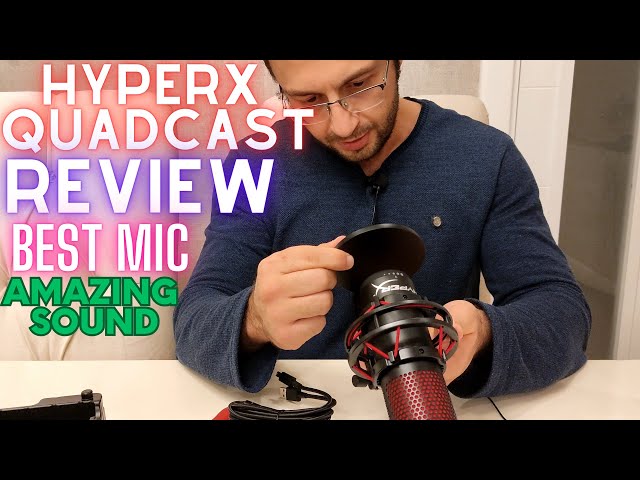
In this video, I am doing a box opening of my new #HyperX #QuadCast HX-MICQC-BK #gaming & #streaming #mic that I have purchased to improve my sound quality in my programming / lecture videos.
I have used my Phone Poco X3 Pro and Boya BY M1 mic to record the first part of the video where I do box opening.
Later I do test with the sound of my Poco X3 Pro phone.
Finally I move HyperX QuadCast sound testing on the computer.
Here the content of the video:
00:00:00 Box opening of HyperX QuadCast HX-MICQC-BK microphone
00:02:23 The features of HyperX QuadCast listed on its box
00:02:57 How to change sound recording modes of HyperX QuadCast
00:03:09 The supported connection types of the HyperX QuadCast
00:04:03 The sound test of my phone Poco X3 Pro
00:04:23 Starting the sound test of HyperX QuadCast without any noise filters
00:05:33 Final testing of the HyperX QuadCast noise suppression filter of OBS Studio
You can watch for free our C# Programming, ASP .NET Core MVC programming, Machine Learning and Software Engineering related courses on our playlists page : https://www.youtube.com/@SECourses/playlists
=================================================
The HyperX QuadCast HX MICQC BK gaming and streaming mic is a high-quality microphone designed specifically for gaming and streaming. With its sleek design, versatile features, and exceptional sound quality, the QuadCast is a top choice for gamers and streamers looking to take their audio to the next level.
One of the standout features of the QuadCast is its four selectable polar patterns: cardioid, omnidirectional, bidirectional, and stereo. This allows you to choose the best pickup pattern for your specific needs, whether you're streaming a solo game, recording a group, or capturing ambient sounds. The cardioid pattern is ideal for streaming or recording vocals, as it focuses on the sound directly in front of the microphone while rejecting sounds from the sides and rear. The omnidirectional pattern is great for recording a group or capturing ambient sounds, as it picks up sound evenly from all directions. The bidirectional pattern is perfect for recording interviews or duets, as it picks up sound from the front and rear but rejects sound from the sides. And the stereo pattern is ideal for capturing a wide, immersive soundscape.
In addition to its versatile polar patterns, the QuadCast also has a built-in shock mount to reduce noise and vibrations from your desk or other surfaces. This helps to ensure that your audio is clean and clear, free from distracting background noise. The QuadCast also has a built-in pop filter to reduce plosives (hard "p" and "b" sounds) and sibilance (excessively sharp "s" and "t" sounds), further improving the clarity of your audio.
Another great feature of the QuadCast is its tap-to-mute sensor. This allows you to quickly and easily mute the microphone simply by tapping on the top of the mic. This is a convenient feature that can come in handy during gaming or streaming sessions, allowing you to quickly mute the mic when you need to take a break or have a private conversation.
In terms of sound quality, the QuadCast is top-notch. It has a high-quality condenser capsule that provides clear and accurate audio, with a wide frequency response and high sensitivity. This makes it great for recording vocals, instruments, or any other sound source. The QuadCast also has a built-in headphone jack, allowing you to monitor your audio in real-time. This can be a valuable tool for ensuring that your audio is coming through loud and clear.
One potential downside of the QuadCast is its price. At around $140, it's not the most affordable microphone on the market. However, its exceptional sound quality and versatile features make it well worth the investment for serious gamers and streamers.
Overall, the HyperX QuadCast HX MICQC BK gaming and streaming mic is a top-notch microphone that is perfect for gamers and streamers who are looking to improve their audio quality. Its versatile polar patterns, built-in shock mount, pop filter, and tap-to-mute sensor make it easy to use and deliver exceptional sound quality. While it may be on the pricier side, its high-quality performance makes it well worth the investment.
-
00:00:01 Hello everyone. I am Dr. Furkan Gözükara. Today I am going to make a box opening and
-
00:00:06 review of HyperX Quadcast USB Microphone. This is a new microphone that I have purchased to
-
00:00:14 improve sound quality of my further videos that I am going to publish in this channel.
-
00:00:19 So hopefully you will enjoy more from my videos with better sound quality in
-
00:00:27 future. The exact model of the microphone is HX-MICQC-BK. So let's start with opening it.
-
00:00:56 I will also make a comparison with my current microphone as you can see here. It is Boya
-
00:01:04 By-M1 model. I will also put a link of it in the description so you can compare it. I will also
-
00:01:11 compare with the sound of my phone which I am recording right now. It is Xiaomi POCO X3 Pro.
-
00:01:27 So this is what comes out of the box.
-
00:01:44 They have made a sturdy box.
-
00:01:55 As you can see it is a pretty big microphone. It looks solid, high quality.
-
00:02:02 It has the necessary items to connect to a desk handler. I suppose. It is the product of Kingston.
-
00:02:15 Alright. The features it has is listed in the behind of the box. Let me show you.
-
00:02:27 Alright. We can say that it has stereo mode for vocal instruments,
-
00:02:36 voice instruments. It has omnidirectional mode for multi-person podcasts, conference calls.
-
00:02:45 It has cardioid mode for podcasts, streaming, voice-overs and instruments.
-
00:02:52 It has bi-directional mode for face-to-face interviews. You can change the mode from
-
00:03:01 here very easily. Alright. It has USB connection and jack connection.
-
00:03:15 It comes with a USB cable like this.
-
00:03:25 Alright. Now I will try to connect this microphone into my phone. Then we will see
-
00:03:39 the sound quality of it. If I cannot connect it to my phone. Then I will continue from
-
00:03:48 recording in my computer. Before connecting the new microphone, let's try with the sound of my
-
00:03:59 phone itself. How does it sound? Currently I am recording sound with my phone itself. This is how
-
00:04:10 it sounds. 1, 2, 3, 4, 5, 6, 7, 8, 9, 10. And now we are going to see the sound recording with the
-
00:04:20 new microphone that I have just purchased. Okay everyone. It turns out that this microphone is
-
00:04:26 not supporting mobile phones. Therefore, I will continue from my PC. It is compatible with PC,
-
00:04:36 PS5, PS4 or Mac and such devices. It has a jack input where you could put AUX cable, male-to-male
-
00:04:47 AUX cable and connect it to your mobile phone. This is not working. This jack input is for only
-
00:04:54 hearing your own sound through an earphone. I have tried this kind of AUX cable.
-
00:05:02 Currently I am recording without any filters or noise suppression or such things with OBS
-
00:05:09 Studio. You can compare this sound with my previous recording with BOYA by M1 model
-
00:05:18 microphone or with my phone's own sound recording which is POCO X3 Pro. Now I will open the noise
-
00:05:29 suppression filter and let's see how it works. Okay now I have enabled noise suppression as I
-
00:05:37 am showing right now in this picture so my sound will be much more clear and easier to hear.
-
00:05:46 I hope you have enjoyed this video. Hopefully my future videos in programming will be much better,
-
00:05:55 will have much better sound quality. I have a lot of courses in my mind such as .NET Core Web
-
00:06:05 API or Fully Entity Framework or MSSQL queries and such. We also now have a new Patreon page so
-
00:06:19 if you support us in here I appreciate that. It will help me to become a full-time online
-
00:06:26 instructor. You can access it with SECourses like this or you can click our link on our
-
00:06:35 YouTube page. I hope you have enjoyed. Please like and subscribe. I hope to see you in a
-
00:06:42 new software engineering related video with the new microphone and better sound quality.