How To Find Best Stable Diffusion Generated Images By Using DeepFace AI DreamBooth LoRA Training
How To Find Best Stable Diffusion Generated Images By Using DeepFace AI - DreamBooth / LoRA Training
Full tutorial link > https://www.youtube.com/watch?v=343I11mhnXs
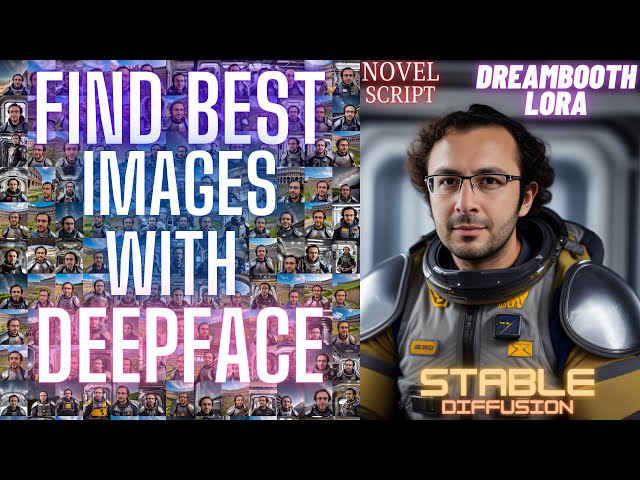











If you are also getting tired of trying to find good images among thousands of generated images you don't have to anymore. By using #DeepFace AI library, you can sort images by their similarity to your target images and quickly find the best Stable Diffusion #DreamBooth LoRA trained model generated images. I am explaining everything step by step and this tutorial requires 0 technical knowledge.
Regularization / Classification images download for both woman and man 5200 imgs
https://www.patreon.com/posts/massive-4k-woman-87700469
Shown scripts download
https://www.patreon.com/posts/sort-ai-images-82478694
Our Discord server
https://bit.ly/SECoursesDiscord
If I have been of assistance to you and you would like to show your support for my work, please consider becoming a patron on 🥰
https://www.patreon.com/SECourses
Technology & Science: News, Tips, Tutorials, Tricks, Best Applications, Guides, Reviews
https://www.youtube.com/playlist?list=PL_pbwdIyffsnkay6X91BWb9rrfLATUMr3
Playlist of #StableDiffusion Tutorials, Automatic1111 and Google Colab Guides, DreamBooth, Textual Inversion / Embedding, LoRA, AI Upscaling, Pix2Pix, Img2Img
https://www.youtube.com/playlist?list=PL_pbwdIyffsmclLl0O144nQRnezKlNdx3
DeepFace GitHub Repo
https://github.com/serengil/deepface
Our Stable Diffusion Repo
https://github.com/FurkanGozukara/Stable-Diffusion
Scripts and the PDF Files Shown In Video
https://www.patreon.com/posts/sort-ai-images-82478694
Amazing Prompts Collection for Stable Diffusion and Stable Diffusion X-Large (SDXL)
00:00:00 Introduction to what DeepFace does and how we are going to utilize it
00:00:58 Let's say you have generated 2000 images how to get good ones
00:01:17 This approach can be used for professional business purposes
00:01:32 If you are new to Stable Diffusion or image generation
00:02:17 Beginning with composing venv to install DeepFace
00:03:18 The training dataset images I have used for this tutorial
00:03:57 I have generated over 3000 images
00:04:06 The prompts I have used to generate images - how to use PNG info to find used prompts
00:05:23 How to write and use DeepFace best images finding script
00:09:18 How to use the script demonstration after you written and set it
00:11:20 Explanation of the values displayed during the script runtime
00:12:18 Sorted images from best to worst
Deep face is a deep learning technique that uses artificial intelligence to identify and recognize faces. It is a powerful tool that can be used for a variety of applications, including security, marketing, and entertainment.
Image similarity is the measure of how similar two images are. It can be used to find similar images in a database, to compare images for copyright infringement, or to create new images by blending together similar images.
Generative AI is a type of artificial intelligence that can create new data, such as images, text, or music. It is a powerful tool that can be used to create realistic images, to generate new content for marketing campaigns, or to create new forms of art.
Training your face for deep fake images is a process of collecting and labeling images of your face so that a deep learning model can learn to recognize your face. This process can be used to create deep fake images that are more realistic and believable.
Here are some of the benefits of using deep face, image similarity, generative AI, and training your face for deep fake images:
Security: Deep face can be used to identify and recognize faces, which can be used to improve security systems. For example, deep face can be used to authenticate users at access points or to prevent unauthorized access to buildings.
Marketing: Image similarity can be used to find similar images in a database, which can be used to improve marketing campaigns. For example, image similarity can be used to find similar images of products that are being sold online, which can help to improve the customer experience.
Entertainment: Generative AI can be used to create new images, text, or music, which can be used to create new forms of entertainment. For example, generative AI can be used to create realistic images of people or places that do not exist, which can be used to create new forms of art or to create new video games.
Education: Deep face can be used to identify and recognize faces, which can be used to improve educational experiences. For example, deep face can be used to track student attendance or to provide personalized learning experiences.
Here are some of the risks associated with using deep face, image similarity, generative AI, and training your face for deep fake images:
Privacy: Deep face can be used to identify and recognize faces, which can be a privacy concern. For example, deep face could be used to track people's movements or to create facial recognition databases that could be used for surveillance.
-
00:00:00 Good day everyone. For those who have been following my Dreambooth, LoRA or Textual Inversion
-
00:00:06 training videos, you are already familiar with the fact that generating a lot of images
-
00:00:12 with Stable Diffusion is necessary to obtain high quality images. However, manually sifting
-
00:00:18 through thousands of images to find the best ones can be tedious and time consuming task.
-
00:00:25 That's why I am excited to introduce you to a new method I have invented that utilizes
-
00:00:32 the power of DeepFace face recognition technology to streamline the image selection process.
-
00:00:39 In this video, I will guide you through a step-by-step tutorial on how to use DeepFace
-
00:00:45 AI to sort and filter the best images based on their similarity to your original training
-
00:00:52 dataset. You don't need any technical knowledge to follow along as I will explain everything
-
00:00:57 in detail. For instance, let's say you have generated 2000 images of yourself with various
-
00:01:03 prompts using trained Stable Diffusion model. By following this video, you will be able
-
00:01:09 to let DeepFace AI to sort through these images and quickly identify the best ones that closely
-
00:01:16 resemble your training dataset. This approach is not restricted to trained models. You can
-
00:01:22 choose base images and sort any images that most closely resemble those selected images.
-
00:01:29 So this can be used for various different tasks. If you are new to Stable Diffusion
-
00:01:35 or image generation, don't worry. I have an amazing collection of tutorial videos on my
-
00:01:40 GitHub page, which is neatly organized and easy to follow. These videos cover everything
-
00:01:46 from the basics of training to advanced image generation techniques. The videos are ordered
-
00:01:52 and also have good titles and thumbnails so look through them and see if you are missing
-
00:01:58 any of them, see if you need any of them to watch and learn. Moreover, you can join our
-
00:02:04 discord server and ask me any questions. There are total 31 videos currently in the list
-
00:02:10 and I will make this list up to date. So make sure that you did star our repository and
-
00:02:17 watching it. We will begin with making a virtual environment folder to install DeepFace. Open
-
00:02:23 your desired folder inside the CMD window like this. You see currently I am inside a
-
00:02:29 script video. Type python-m venv venv. The second one is the name that you are going
-
00:02:36 to give for your virtual environment directory. Now we have a venv folder inside our desired
-
00:02:43 folder. Enter inside scripts folder of venv folder type cmd. So currently this is where
-
00:02:51 I am. Type activate. Now virtual environment is activated. Then copy this command and run
-
00:02:57 it inside our activated virtual environment folder like this. It will install DeepFace
-
00:03:03 and its dependencies without affecting any other installation that you have. Everything
-
00:03:09 this command will install will be only effective in this virtual environment. Everything has
-
00:03:15 been installed without any errors. So I have taken my new pictures like this in the same
-
00:03:22 day with the same clothing. This is not a good training data set, why? Because I have
-
00:03:28 repeating backgrounds, repeating clothing, however this worked very well. Then I did
-
00:03:35 a training by following the exact settings that I have explained in this particular DreamBooth
-
00:03:40 video. By the way in the title you see RunPod but since it uses Automatic1111 Web UI you
-
00:03:47 can use these on Linux, MacOS or in Windows. As long as you use Automatic1111 Web UI. Then
-
00:03:56 I have generated over 3000 images. The images you are seeing currently right now are RAW
-
00:04:02 images. I will now show you their prompts. So to show you their prompts, I go to PNG
-
00:04:09 Info tab in my Automatic1111 web UI. I drag and drop images like this into here and it
-
00:04:16 shows the used parameters. So here you are seeing the parameters. I have posted them
-
00:04:23 on our GitHub repository as Midjourney level realism file. This is the positive command
-
00:04:30 and this is the negative prompt. Also these are the steps, resolution. You see I had used
-
00:04:36 3510 steps model epoch. I have used Realistic Vision version 20 to train this model. Even
-
00:04:44 though I have used repeating clothings, repeating backgrounds, you see the model was still perfectly
-
00:04:51 able to generalize my face and able to produce amazing pictures I will show you. This also
-
00:04:58 proves that Automatic1111 Web UI DreamBooth extension has become very very powerful and
-
00:05:05 working very very good. Okay here another prompt that I have used. So currently this
-
00:05:12 folder is composed of two different prompts. This prompt is also posted on the Midjourney
-
00:05:19 level realism file on my GitHub repository. So now instead of looking through all of these
-
00:05:26 images and finding the best looking ones I I will use DeepFace and the script that I
-
00:05:32 have written. So here the script file, I will explain everything one by one. We are importing
-
00:05:39 the necessary libraries like here, then original images folder path. This is the path where
-
00:05:46 we want to use as a base image. What I mean: I have selected five images from my training
-
00:05:54 data set and I wanted the AI to compare generated images with these images and find me the most
-
00:06:02 similar looking ones. So I suggest you to pick handful of good images from training
-
00:06:08 dataset and aim them. Because as you increase number of base comparison images it will take
-
00:06:15 much more time. Because the model has to compare generated images with every one of the images
-
00:06:23 that you set in this folder. So this is the path of the folder. Then here we are setting
-
00:06:29 the generated images path. So now I will set it. This is the generated images path. I copy
-
00:06:35 it, paste it. You see it has a r letter in the beginning of it. This means that this
-
00:06:41 is a raw literal path. If you don't use this, you have to make this path like this for Python
-
00:06:48 to work. Okay, then we define the name of the model to use, which is Facenet512. There
-
00:06:55 are also these models that you can test. I have tested some of them and I think Facenet512
-
00:07:02 is working pretty good, but you can also test other models if you wish. Just change the
-
00:07:08 name with the names from here. This is written in the DeepFace GitHub repository. Okay then
-
00:07:14 we are setting a folder where the model will extract detected face of our base faces. Not
-
00:07:22 the generated faces so you can see how well the model is working. So here the detected
-
00:07:28 faces from my base faces. The DeepFace automatically find the face in the image and then extract
-
00:07:35 them like this in the runtime. I just saved them for demonstration. So in this folder
-
00:07:41 they will be saved. Okay, then we define original images array like this. This will generate
-
00:07:47 this folder if it is not existing. Okay, here in this part, we will load our base comparison
-
00:07:56 images, the training images into memory. You don't need to change any code in this part.
-
00:08:03 Then in here, there is one setting that you want to make. I made this script supporting
-
00:08:08 multi-threading to increase the speed of the process. So I suggest you to set these number
-
00:08:15 of threads equal to number of base comparison images that you selected. I also don't suggest
-
00:08:22 you to select too many because it will just increase your process time significantly.
-
00:08:29 You don't need to change anything else here. Ok there is one parameter here that you can
-
00:08:34 change which is counter. Let's say you have 5000 images in a folder and you don't want
-
00:08:41 to process all of them. Then here you can set a counter. When the counter is equal to
-
00:08:47 this number, it will just stop processing and it will sort the processed images. And
-
00:08:54 then you will be able to see the processed images. I will demonstrate you. And in this
-
00:08:59 part, you also don't need to change anything. So the things that you need to change are
-
00:09:04 the folder paths and number of threads that you want to use and the counter if you want
-
00:09:12 to stop early. So let's begin and let me demonstrate you how to use this. Okay for demonstration
-
00:09:19 I am picking 294 images. I copy paste them into demo folder like this and these are the
-
00:09:26 selected images. Copy the path. Then I change the generated images folder into this folder
-
00:09:33 like this. I will process up to 150 images for demonstration purposes. I am not changing
-
00:09:41 the comparison images. These are the good images that I picked. I will also rename all
-
00:09:46 of the files so it will make your life easier. Control+a select all images, right click rename,
-
00:09:53 just type a like this and all images are renamed like this. Once you prepared the processing
-
00:10:00 script save it inside your main folder like you are seeing. findbestimages.py then you
-
00:10:09 can either manually run the findbestimages.py file. Let me demonstrate. Open virtual environments,
-
00:10:16 scripts, type cmd, type activate, then move to the upper folder, type python and the findbestimages.py
-
00:10:25 file. Ok it looks like we have forgotten to install this library. I will also install
-
00:10:31 it. So pip install matplotlib. It is installed. Then run the python file again. And it starts
-
00:10:39 processing. However instead of doing this every time, you can prepare activate.bat file.
-
00:10:46 So in this file you are setting virtual environment path like this then you are setting the main
-
00:10:54 folder like this and then it will run the our processing script. Let me run it. I double
-
00:11:02 click it. Okay it prints that detected faces are saved in the folder. And then it starts
-
00:11:08 processing all of the images. It displays the distance between compared images. So currently
-
00:11:15 it is processing every image displaying the distance of the images. Okay so what are these
-
00:11:21 values? The first value is the currently processing images. The second value is the total number
-
00:11:26 of images in the given folder. Then if you use multiple base images you will see like
-
00:11:34 this multiple distance scores. So let me explain what are these distance values. So the first
-
00:11:40 value is the distance between my first original image this one and the image 34 in my generated
-
00:11:48 images data set. The second value is the distance between the image 34 and my second image in
-
00:11:56 the compare images directory and you will see a final value here. This is the average
-
00:12:02 of the each distances of compared base images. So in the end it will sort all of the compared
-
00:12:11 images with the average distances and rename them. The application has completed. So now
-
00:12:18 we see the sorted images. How are they sorted? It says that the first image has 0.156 average
-
00:12:27 distance when compared to all of my base images. So here the results of 3200 images sorted
-
00:12:37 with my algorithm. Let's see how similar they are. The algorithm says that this image was
-
00:12:43 very similar to your base images and yes we can see that already. This is the second image
-
00:12:50 the algorithm found very similar. This is the third image the algorithm found very similar.
-
00:12:56 This is the fourth image. This is the fifth image and here another one. This is not perfect
-
00:13:03 but it will make your job very easy. It will significantly reduce your time to sort through
-
00:13:11 these images. The used script files are posted on our Patreon page. So either you can type
-
00:13:18 them yourself or support us on Patreon and download them directly. If you support me
-
00:13:26 on Patreon I would appreciate that very much. You don't have to become our Patreon to follow
-
00:13:32 this tutorial because I have shown you the entire script so that you can type yourself
-
00:13:38 or you can be generous and support me on Patreon to just download them directly. So the link
-
00:13:45 for this file and also this GitHub repository and also this Patreon post will be in the
-
00:13:51 description of the video and also in the pinned comment of the video. This is all for today.
-
00:13:56 If you have enjoyed this video please subscribe, like, comment, share and also if you support
-
00:14:03 me by joining on Youtube or on Patreon I would appreciate that very much. So you will find
-
00:14:09 our Discord link and also Patreon link in the description of the video like this. Also
-
00:14:14 they will be available on the pinned comment of this video like this. Best way to contact
-
00:14:21 me, communicate with me is our Discord channel, it is growing. So please join. Hopefully see
-
00:14:26 you in another amazing video.