How To Generate Stunning Epic Text By Stable Diffusion AI No Photoshop For Free Depth To Image
How To Generate Stunning Epic Text By Stable Diffusion AI - No Photoshop - For Free - Depth-To-Image
Full tutorial link > https://www.youtube.com/watch?v=TBq1bhY8BOc
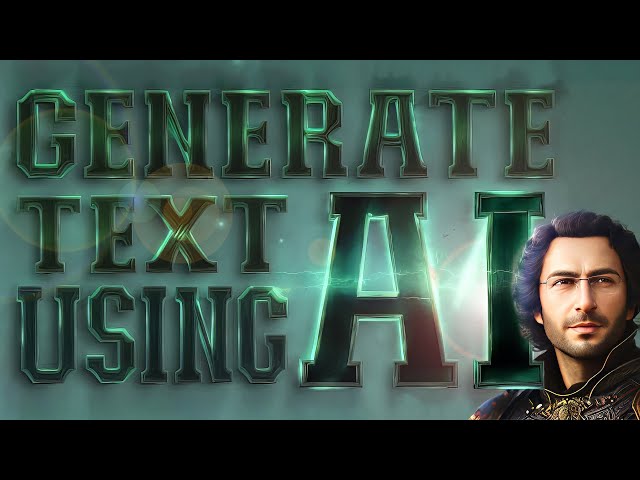











Our Discord : https://discord.gg/HbqgGaZVmr. Don't have Photoshop or Artistic skills like me? No need anymore. Use AI to generate #EPIC text. If I have been of assistance to you and you would like to show your support for my work, please consider becoming a patron on 🥰 https://www.patreon.com/SECourses
Playlist of #StableDiffusion Tutorials, Automatic1111 and Google Colab Guides, DreamBooth, Textual Inversion / Embedding, LoRA, AI Upscaling, Pix2Pix, Img2Img:
https://www.youtube.com/playlist?list=PL_pbwdIyffsmclLl0O144nQRnezKlNdx3
Automatic1111 Web UI: https://github.com/AUTOMATIC1111/stable-diffusion-webui
Easiest Way to Install & Run Stable Diffusion Web UI on PC by Using Open Source Automatic Installer
Stable Diffusion v2 Depth Model Card - stabilityai/stable-diffusion-2-depth ckpt:
https://huggingface.co/stabilityai/stable-diffusion-2-depth/tree/main
Midas file : https://github.com/isl-org/DPT/releases
Midas direct download link : https://github.com/isl-org/DPT/releases/download/1_0/dpt_hybrid-midas-501f0c75.pt
Paint .NET Download : https://www.getpaint.net/
AI powered free image background remover website:
https://clipdrop.co/remove-background
00:00:00 Introduction to best cinematic and epic image generation tutorial without using any paid programs like #Photoshop
00:00:28 The GUI we are using to generate artworks Automatic1111 Web UI
00:01:06 Where to download necessary AI model - Stable Diffusion Depth model
00:01:18 Where to put downloaded AI model file
00:01:42 Where to get and put necessary AI file - midas dpt_hybrid-midas-501f0c75.pt
00:02:37 Where to install Depth to Image IO extension / script of Automatic1111
00:03:13 Where to find installed Depth to Image IO extension in the interface
00:03:30 What is crucially important when using Depth to Image of Stable Diffusion
00:04:15 How to prepare base template text image file
00:05:32 How to generate awesome fantastic epic cinematic text by using this basic template text file
00:06:17 What kind of prompt I have used to generate epic text artworks
00:08:59 How to test effects of different prompts - prompt engineering
00:10:32 How to generate images faster with batch size
00:11:02 What happens when you use bigger base template than 1/8 of your target resolution
00:13:58 How to reduce necessary VRAM - VRAM usage by command line arguments
00:14:43 The output of big target resolution instead of 1024 pixels
00:15:38 How to use AI upscaling algorithms to increase your image resolution with almost 0 quality loss
00:16:50 Results of quite different prompt batch testing
00:17:35 What is prompt emphasis - how to give more importance and weight to the words
00:18:05 How to remove backgrounds from images by using AI powered free website
00:19:00 Outro - please consider supporting us on Patreon
Creating stunning and epic cinematic images doesn't have to be expensive or require paid software like Photoshop. In this tutorial, we will show you how to generate these images using the Automatic1111 Web UI and two AI models: Stable Diffusion Depth model and midas dpt_hybrid-midas-501f0c75.pt.
First, you'll need to download the Stable Diffusion Depth model and place the file in the appropriate location. Then, download the midas dpt_hybrid-midas-501f0c75.pt AI file and place it in the necessary location. Next, install the Depth to Image IO extension/script for Automatic1111 and locate it in the interface.
It is important to remember that when using the Depth to Image of Stable Diffusion, the base template text image file must be prepared properly. To generate the epic text artwork, use the basic template text file and experiment with different prompts. You can even test the effects of different prompts using prompt engineering.
To speed up the image generation process, you can increase the batch size. However, using a bigger base template than 1/8 of your target resolution may cause issues. To reduce necessary VRAM usage, you can use command line arguments.
If you want to increase your image resolution without sacrificing quality, you can use AI upscaling algorithms. Experiment with different prompts and batch sizes to get the results you want. You can also give more importance to certain words by using prompt emphasis. Finally, use an AI powered free website to remove the backgrounds from your images.
In conclusion, with the tools and techniques outlined in this tutorial, you can generate stunning and epic cinematic images without the need for expensive software. If you found this tutorial helpful, please consider supporting us on Patreon.
-
00:00:00 Greetings everyone. In this tutorial I will be demonstrating how you can compose stunning
-
00:00:04 cinematic text images for your projects by using Artificial Intelligence. We will be utilizing the
-
00:00:09 popular and free Stable Diffusion text-to-image generative depth model. For graphical user
-
00:00:13 interface we will use Automatic1111 web UI that is open source developed python based web
-
00:00:18 application. You won't need expensive software like Photoshop, nor you will need to have any
-
00:00:23 artistic talent. Simply follow along and you will be able to generate amazing text artwork. So I
-
00:00:28 have started my freshly installed Automatic1111 web UI. At the bottom you can see the versions
-
00:00:34 that I am using. Python, Torch, xformers, Gradia, Commit and Checkpoint. And this is my CMD window.
-
00:00:39 If you don't know what is Automatic1111. It's a community developed interface for using Stable
-
00:00:45 Diffusion different models and I have an excellent tutorials for Stable Diffusion on my channel. How
-
00:00:51 to use it, how to install Automatic1111 web UI in this video and in other videos,
-
00:00:56 I am explaining a lot of different things regarding a Stable Diffusion, how to use it,
-
00:01:01 how to utilize it. So to be able to use depth model of the Stable Diffusion, we need to download
-
00:01:06 this ckpt file depth-ema.ckpt. Just click this link and it will open this page and just click
-
00:01:14 download here it will get downloaded. Once the download has been completed, open your downloads
-
00:01:18 folder and cut the model file, then go back to your installation of web ui. Enter inside models,
-
00:01:25 enter inside Stable Diffusion folder and paste it there. Once the file has been pasted,
-
00:01:30 go back to your web ui, click refresh button here and then select the model. It will download the
-
00:01:36 necessary files and you will see them in here. Okay, you see it has generated the necessary yaml
-
00:01:41 file for us and then it has started to download necessary midas file. The midas file is downloaded
-
00:01:47 from GitHub releases here. You can also manually download it and put it inside that model folder
-
00:01:52 if it is taking too long. It totally depends on the speed of GitHub and your internet connection.
-
00:01:57 Okay, I got the file manually downloaded. So now I will put this file inside this folder models
-
00:02:04 midas. So I am opening my installation inside here midas and I will just copy paste it. You see it is
-
00:02:10 currently still downloading from cmd window, so i'm just closing it pasting it there. So you see
-
00:02:15 it has already downloaded only 11 megabytes so manually downloading is another option. Then I
-
00:02:20 will just restart the application. Web ui has been restarted and now the model is selected
-
00:02:27 as 512. Make sure that you are selecting this model. When you refresh this it will list the
-
00:02:32 inside available models and you will select this 512 depth ema ckpt. And now we have to install our
-
00:02:39 depth to image extension. To do that go to the extension tabs, go to available load from and
-
00:02:46 in here. Search for depth keyboard with ctrl f. Like this and you will see let me show you with
-
00:02:52 zoom in Depth Image IO we are going to install this click install. Once it is installed you
-
00:02:58 will see a message here it is already installed. Then go to the installed tab and click apply and
-
00:03:04 restart UI. You can also close cmd window and open it again and let's see after the web ui has been
-
00:03:11 restarted like this, go to the text to image tab and in the bottom you will see script tab here.
-
00:03:16 Just click it and now you will see custom depth images input output. So there are two things
-
00:03:22 that you need to be careful. You see there are notes and hints, click to expand it. You can
-
00:03:27 read entire thing here, actually read it twice. So what are important? The important things are:
-
00:03:33 the depth image should be grayscale, white is the nearest to the camera, black is the farthest and
-
00:03:39 one another very important thing is that note that the image will be downscaled down to one
-
00:03:45 over eight of the target image size. So if we are targeting 512 by 512 pixels, then our input image
-
00:03:56 will be downscaled to 64 by 64 pixels. And what does that mean? That means that calculate your
-
00:04:04 target size and make your input size according to that. So let me demonstrate it. I will use
-
00:04:11 another free open source software Paint .NET to generate my base text images. First I will
-
00:04:19 start with 64 by 64 pixel as a base. Okay, I will fill it with first black to do that, let's open
-
00:04:28 the brush tool from here okay and click this and it will make the entire scene as black. You can
-
00:04:38 use any tool you want. This is free therefore I am using it. So if you wonder what is Paint .NET this
-
00:04:44 is the Paint .NET. You can download it from this website or you can search for Google and install
-
00:04:49 it. So then this is our canvas black 64 by 64 because my target image is 512 pixel. Therefore,
-
00:04:58 it won't get downscaled and I will get the best quality. For example, let's type test. However,
-
00:05:05 the text should be white because it will be our depth actually. Let me type test.
-
00:05:10 Let's also make its font size a little bit bigger. You can choose any font you want. It
-
00:05:16 will just work fine. For example. Maybe let's just choose this as test then I will save it.
-
00:05:24 I will save it inside pictures 64 64. Now we are ready to do our testing. So go back
-
00:05:33 to your Stable Diffusion web UI and in here just close this. Sorry about that, put the image here,
-
00:05:41 test. Okay we are ready. So how does this thing is working? You need to define what kind of style
-
00:05:49 you are wanting. Now I will show you the examples which prompt I have used. By the way, if you are
-
00:05:57 first time seeing this web UI, Stable Diffusion as I said just watch the tutorials here and you
-
00:06:04 will understand how it works and what capabilities it has. So I am going to png info and I will use
-
00:06:13 one of my previously generated image to get the prompt. So this is the prompt I used. I am sending
-
00:06:20 it to text image so let me show you the prompt: 3d cinematic text with background lightning shading,
-
00:06:29 dramatic effect adobe neon good quality glow glass art station fantastic rpg epic movie sharp focus
-
00:06:38 seemingly lightning fire cyber so basically you are defining the kind of output you want to get.
-
00:06:45 This is extremely important because the text prompt you enter will define the output you are
-
00:06:52 going to get and in the negative prompt we are entering the description that we want our final
-
00:06:59 output image to be avoided of. This is also really important to get the high quality. I am selecting
-
00:07:05 my custom depth to image again. It is here and then just click generate and it will generate
-
00:07:11 it. By the way, I need to fix the resolution. Sorry about that. Let's generate it again.
-
00:07:16 So this is noise because it starts from noise, then it generates. It didn't take much time so
-
00:07:23 this is our generated output image. Let's generate another one. This is not very good actually. This
-
00:07:30 is a decent one, but we can do better for this to work. You have to generate a lot of ones and okay,
-
00:07:38 another one is coming. It is like this. Now I will generate eight images at one time. To do that I am
-
00:07:45 changing the batch size to eight. By the way for this to work you need a decent GPU, otherwise you
-
00:07:51 might get error. So let's see the results. We got eight output in one run. Let's look at them
-
00:07:59 like this. By the way with this font I think we are not able to get very good images. Therefore
-
00:08:05 now I will try with another font and this is the depth mask it is displaying. I am using sampling
-
00:08:12 method as DPM++ SDE Karras. You can also use Eular a. It also works very well. Okay now I have picked
-
00:08:19 test with Algerian font. Font size is 20. Let's save as as let's say two just two it's saved
-
00:08:28 and then let's just load test in here and hit generate. With this font we got different
-
00:08:37 outputs. I think this font works better. When you are working with AI you have to generate hundreds
-
00:08:44 of images and pick the best one you like. Another results as you can see like this. Okay like this
-
00:08:54 and if you wonder how much time this is taking this is taking about 20 seconds to to generate
-
00:09:00 eight different outputs like this. So let's say you want to test the effect of different keywords,
-
00:09:09 different prompting. To do that you need to keep the same seed so in the bottom you will
-
00:09:16 see the seed it has been used for particular image. So for this image the seed was this.
-
00:09:23 So i'm setting this seed and this is the input. Let's make the batch size and the
-
00:09:28 batch count one and let's generate again to see whether we are getting it again or not.
-
00:09:33 And yes we got the image. So what happens let's say if I remove these words. Let's generate again.
-
00:09:41 Okay now this is the result we got. You see how it is affecting the result with the same
-
00:09:46 seed. So let's also remove more and let's see what happens. And now this is the result we got. If we
-
00:09:54 just remove these as well, let's see what kind of results we are going to get and this is the result
-
00:10:01 we got with just 3d cinematic and let's say epic 3d epic and this is the result we got. So you see
-
00:10:09 how it is affecting the result. If you remove the negative prompts, it will also affect your
-
00:10:15 result like this so it became much more simpler. Let's take all of them back and generate again and
-
00:10:24 we are going to get the same image same initial image we had. If you increase batch count it will
-
00:10:30 generate number of times that you set here. For example, if I set it as four and if this be four
-
00:10:36 it will generate parallelly four image four times. Let me show. Okay we got 16 images and these are
-
00:10:44 the images as you can see. So the prompts will have the most significant effect on the outputs.
-
00:10:52 Also the font you used and what happens if we use bigger resolution in the input. It will first get
-
00:11:01 downscaled, then it will get upscaled. Let's see the effect. Okay, I got the image. This is 512 by
-
00:11:07 512 same font and let's save it. I have opened it another tab here, copied and pasted every settings
-
00:11:15 here so we will be able to compare. I am using the same seed, same number of batch count, batch size,
-
00:11:21 and the same CFG value. To learn all about this, you should definitely watch my playlist here and
-
00:11:28 I have picked our new 512 pixel image. By the way, it works with any resolution, but you really
-
00:11:34 need to provide one over eight of the target resolution. So let's say if you want to generate
-
00:11:41 1024 1024 then you should provide 128 128. I will make more examples. Let's just click, generate.
-
00:11:51 The output has been generated, let's open it in new tab and let's also return back here and let's
-
00:11:58 open this one in new tab as well. So you see this is the native resolution we provided 64 pixels
-
00:12:06 because it didn't get downscaled and this is the new resolution because this has been downscaled to
-
00:12:13 64 pixels. And you see, the letters are now not exactly as they should have been. So to obtain
-
00:12:21 exact letters, to not lose any letter quality, you need to provide the native resolution that it is
-
00:12:29 expecting. This is also different. Maybe you like this more than you like this, but if you want to
-
00:12:35 keep the letters as much as possibly correct without additional things, then you need to
-
00:12:41 provide native resolution. So let's say you want to obtain 2048 and 1024. For this, what resolution
-
00:12:51 you need to provide. Let me show you so you need to divide it by eight. Which means 2048 divided
-
00:13:00 by eight is equal to 256. And for 1024 divided by eight, we need 128. So this is the formula that
-
00:13:13 you need to apply to get the best results. Let's generate an image in this dimension.
-
00:13:19 I am using Paint .NET but you can use any drawing software. You can even use paint. It is up to you
-
00:13:26 to use. This is my text. Let's just save it as four. Okay and then let's just load it in here.
-
00:13:38 Okay and let's hit the generate. This will take time and out of memory error because my batch
-
00:13:47 size is four. Let's see, let me also show you my GPU usage. It is almost full at the moment
-
00:13:56 and let's see if we will get out of memory error. By the way,
-
00:14:01 if you get out of memory error, you can run your Automatic1111 with this command --medvram
-
00:14:10 and it will reduce the vram usage significantly and if this fails then you can try --lowvram.
-
00:14:18 This is the lowest possible vram that you can go. It will significantly reduce your speed, speed of
-
00:14:26 image generation and where do you entering them? You are right clicking webui-user.bat, edit it and
-
00:14:33 you are entering them in command line arguments here. Okay so I didn't get out of memory error
-
00:14:40 but it is going to take 20 minutes. It was going to take too much time so I cancelled the operation
-
00:14:46 and generated on the single image. This is the output of image and you see the stylizing is not
-
00:14:55 as good as before because I noticed that if you go over 1k resolution the stylizing is reduced. I
-
00:15:02 think it is related to resolution that it has been generated. So I suggest you to use a resolution
-
00:15:09 like this. Don't go over 1024. Okay this is the result we got with 1024 and 512 pixel and the
-
00:15:19 image resolution is 128 and 64 pixels. You see the stylizing is back and you can just make the seed
-
00:15:28 minus one to get different kind of images. Whenever you click generate it will pick another
-
00:15:34 seed and generate another output for this image. But if you need higher resolution than this it is
-
00:15:40 so easy. Just go to the bottom and see you will see send to extras. When you go extras tab there
-
00:15:49 are resizing options like this. Let's say you need 2k resolution 2048 pixel. So I am going to scale
-
00:15:57 by resize to 2 and there are several upscalers. I find that R-ESRGAN 4x+ to be best. When you click,
-
00:16:05 generate it, will first download the necessary file for upscaling. This is only one time,
-
00:16:11 then you will be able to upscale any image immediately. So the necessary files have been
-
00:16:17 downloaded and our upscaled image is generated. So let's compare them and how they look. This
-
00:16:24 is our original resolution image and this is our upscaled image. It is extremely good at upscaling.
-
00:16:31 You can also try other upscalers here and you can pick the best one you like. So my suggestion is
-
00:16:38 define your target resolution divided by eight. Use that as an input and generate the image,
-
00:16:46 then upscale it to your desired resolution. Now I will show you another prompt. I used to generate
-
00:16:53 these images and you already by know that the prompt affects your results significantly and
-
00:17:02 look at the quality. It is just amazing quality, amazing styling, amazingly different styles,
-
00:17:08 outputs. So it is totally up to you to try different prompts and generate different
-
00:17:15 quality outputs like this. They are all awesome if you ask me and from now on I will use these to
-
00:17:23 generate my videos thumbnails. The prompts are used to generate these images were like this,
-
00:17:29 let me show you 3d stunning water effect epic glossy text and solid background with 1.5. You
-
00:17:37 may be first time seeing these syntax. This is a special syntax to increase emphasis of the
-
00:17:43 words. So you are putting one bracket here and in here. Then you are putting a colon here and typing
-
00:17:51 1.5 or 1.1 this means that give more emphasis to these words. This is explained in the wiki
-
00:18:02 of the Automatic1111. Just pause the video right now and read it. There is one final thing that I
-
00:18:07 want to show you. Let's say you want to remove the backgrounds of the generated artworks. To do that,
-
00:18:12 we are going to use this another AI tool which is free to use. There could be better approaches but
-
00:18:18 they could be more advanced. Therefore, I will use this website. It is free to use just drag and drop
-
00:18:25 your image here and it will remove the background from it like this. I checked its quality and it's
-
00:18:30 pretty decent if you ask me. You see pretty clear. Of course it would depend on the complexity of the
-
00:18:37 image that you want to remove the background. If you don't want background then you should modify
-
00:18:42 your prompts according to that you see there are some artifacts for this image, but if you choose
-
00:18:49 the simple background having ones for example, let's try this and it will pretty correctly
-
00:18:54 remove the background. Almost perfect as you can see. Just click download and it will download it
-
00:19:00 perfectly fine. This is all for today. If you have enjoyed the video, please like, share and leave a
-
00:19:06 comment and you can also join our discord. Go to our about page of our channel and in the bottom
-
00:19:13 you will see official discord channel. I will also put the link into the description and if
-
00:19:17 you support us on Patreon, I would appreciate that very much. I am appreciating all of my
-
00:19:22 patrons so far and thank you very much to them. Hopefully see you in another awesome video.