GenTube Make Stunning AI Art in 2 seconds New Free Image Generation Platform Review and Tutorial
Full tutorial link > https://www.youtube.com/watch?v=9qPNjIOdpnc
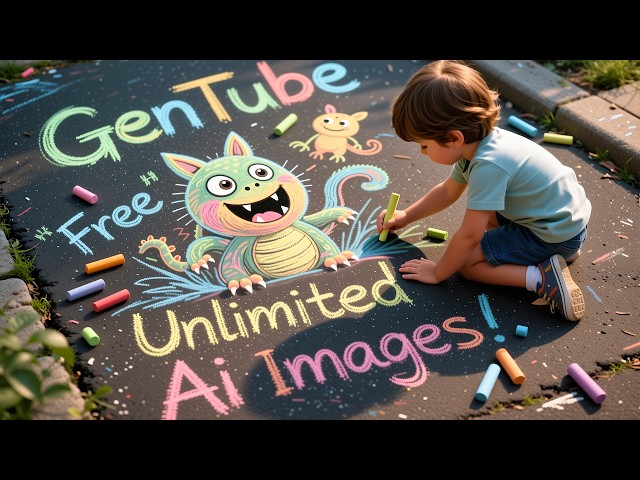











https://www.gentube.app/?_cid=SECourses25
GenTube is a platform that you can generate AI images lightning fast. Literally some images generated like in 2 seconds. Currently it is 100% free to use. I don't know how long it will last but you can use it as long as it lasts. This video is raw and honest review and also full tutorial of GenTube.
The link of GenTube service : https://www.gentube.app/?_cid=SECourses25
1851 Labs is the crew behind GenTube. Founded by Mo Musbah (AI startup acquired by Microsoft) and Josh Kuntz (scaled Wish to 100M+ MAUs).
GenTube site link : https://www.gentube.app/?_cid=SECourses25
Video Chapters
00:00:00 Introduction to GenTube & The 'Why Free?' Question
00:00:24 Step-by-Step Guide: How to Login and Access the Creator
00:00:43 Your First Generation: Live Prompting & Real-Time Image Updates
00:01:08 Explaining Draft Mode: How to Control Auto-Saving to Your Profile
00:01:32 Navigating Your Profile: Viewing Saved Generations, Likes & Stats
00:02:16 How to Use the Regenerate Button for Instant Image Variations
00:02:32 The Swiping Experience: Exploring Random Styles, Lighting & Layouts
00:03:55 Advanced Style Mixer: Drag-and-Drop to Blend Different Art Styles
00:05:32 In-Depth Profile Features: Starring, Hiding, and Downloading Images
00:06:08 Checking Downloaded Image Resolution and Watermark Details
00:06:21 One-Click Remixing: Applying Quick Effects like Fish Eye & Art Baroque
00:07:15 Using Magic Edit to Transform Your Image into a 3D Render
00:08:02 Exploring All Remix Categories: Adding Objects, Times of Day & More
00:09:09 How to Copy a Full Generated Prompt to Reuse or Modify It
00:09:33 Using the 'Beautify' Feature to Automatically Enhance Simple Prompts
00:10:41 How to Create and Manage Your Own Channels for Themed Galleries
00:12:01 Gen OC: A Walkthrough of the Original Character Creation Tool
00:13:41 Creating a 'Block': Building a Custom Place or World for Your Images
00:14:46 Full Profile Tour: Reviewing Creates, Channels, Blocks, and Likes
00:15:19 Creating & Combining Custom 'Subjects' for Consistent Generations
00:16:50 How to Find the Exact Final Prompt Used in Your Generation History
00:17:23 Joining the Official GenTube Community on Discord
00:17:51 About the GenTube Team, Company Background & Final Thoughts
Some background music by NoCopyrightSounds : https://gist.github.com/FurkanGozukara/ab4eadc006ffde7071f63d629b0198b7
-
00:00:00 Greetings everyone. Today I am going to introduce you a new service called GenTube. This is a free
-
00:00:06 service, therefore, I wanted to make a review of it, an honest review. So you may be wondering,
-
00:00:12 why free? Because the developer said that they are looking for monetization later, but currently it
-
00:00:18 is free to use and they claim that it will remain free to use. So it is so easy to use. I will put
-
00:00:24 a link below in the description of the video and also in the comments section. After logging
-
00:00:29 in with your account, you can use any account. Let me demonstrate you. When you open the link,
-
00:00:35 you will get to this page and click login and login with Google, Facebook, Discord,
-
00:00:40 whatever you want. I used Google. Then we click the create button,
-
00:00:43 and whatever you want to generate, just type a prompt. Let's try something simple: an amazing,
-
00:00:48 expensive, luxury sports car. By the way, it is automatically generating as you type. For example,
-
00:00:54 let me demonstrate you. Let's say the daytime. Okay, I just pause and it should update the image.
-
00:01:02 Okay, we can see that yes, the daytime is night. And it will automatically update it, as you can
-
00:01:08 see. There is this draft mode, and what this does is that when draft mode is off, creations will be
-
00:01:14 auto-saved to your profile. And if you don't want your generations to be saved, just enable this,
-
00:01:21 and it will not be automatically saved. Then you need to click this add to profile button to
-
00:01:26 save them if the draft mode is on. But if you turn it off, it will be automatically saved.
-
00:01:32 So where you can see your saved generations? Go to this link. This is my username, and
-
00:01:38 all my generations are here. So I can quickly see them. There is also my likes. If I like anything,
-
00:01:45 it will be seen here. For example, let's like one of them. Okay, this one I liked here.
-
00:01:51 Then let's go to my likes and let's refresh. Okay, yes, you see one like. I have one like,
-
00:01:57 and these are my current stats. This platform, I think, will be like a marketplace where you will
-
00:02:04 follow other artists, other people who want to share pictures and other stuff,
-
00:02:10 but it is not done yet. So currently it is fully free to use. You see there is a share
-
00:02:16 icon. You can share it on Reddit, Facebook, X, wherever you want. And there is this regenerate
-
00:02:21 icon. When you click this, it will regenerate the image with a different seed, like this. So you can
-
00:02:26 use this icon to regenerate as many times as you want until you get the perfect picture you want.
-
00:02:32 And then there is this hand icon. When you click it, it will prepare your swiping experience,
-
00:02:38 and what does that mean? It will automatically change styles between arrows. You see? So this
-
00:02:44 was my original. If I click bottom, it will change a random style like this. You see? Dark fantasy,
-
00:02:50 Bumpy style, Impressionist. You see, this is a really good one. So it will randomly pick a style
-
00:02:57 and generate an image. This is a really, really cool feature. There is also a lightning button.
-
00:03:02 So you see this was selected. This is why this is changing styles. If you select lightning, then
-
00:03:07 it will change the lightning like this. You see? Silhouette, rainbow gel, candlelit. This is really
-
00:03:13 cool. When you go to layout and click it, it will change the layout like this. You see? Negative
-
00:03:18 space, tension geometry. So between these three, it will randomly generate something that you may
-
00:03:25 like. This is a really cool feature. Then you can like the generation or you can share it. And since
-
00:03:31 my draft mode is not on, it will be automatically saved. And in the bottom, I can see that there
-
00:03:37 is a gallery of generations. So I can quickly move between all my generations. Let me zoom in
-
00:03:42 to show you. So you see in the bottom, you will see a gallery of your generations like this. And
-
00:03:49 when you click the prompt, it will show you the prompts that it has added like this automatically.
-
00:03:55 Okay, then there is another icon, which is this one, as you can see. When you click it, it will
-
00:04:00 show you how you want to change the image. So if I drag and drop to this area like this, it will
-
00:04:08 turn it into pixel art, as you can see right now. Or if I want to make it cyberpunk, so I drag and
-
00:04:14 drop it to here, and it becomes cyberpunk. You can of course change the options available here. So
-
00:04:21 let's say I want to make it something like this, pixel art and anime art, a composition of them,
-
00:04:26 and it becomes pixel and anime art like this. Or if I want anime and watercolor, I drag and drop it
-
00:04:32 into here, and it becomes something like that. So this is a really cool feature. You can change the
-
00:04:38 options from these selections and you can change the image as you can see right now. This service
-
00:04:46 is really fast. Probably they are using SDXL. I'm not sure, maybe some flash versions of the Flux,
-
00:04:51 but it is working really well. So you can change between options, you can change the position. It
-
00:04:57 will try to match it like this. You see, it is generating and every generation will be saved in
-
00:05:02 my profile. Sometimes it may take a while, just be patient. And it is here. So if I click here,
-
00:05:09 yeah, it doesn't show the final prompt here. And if I click this icon, what it will do is it will
-
00:05:15 generate another one with my selection. So this is like a regenerate button, but now it is appearing
-
00:05:22 in here. So as I click it, it will regenerate another one. And if you want to turn off this
-
00:05:26 screen, just click this and it will be turned off and you will be back to these icons available.
-
00:05:32 So when you return back to your profile here, you can do some actions here. For example, this star
-
00:05:39 icon will star it and it will be starred in my profile. So someone else may look at my profile
-
00:05:45 and see my starred images. Moreover, if you click on the image like this, let's click on this one,
-
00:05:51 there are some other options. From this three-dot icon here, you can add to channel, download, hide,
-
00:05:58 or report. So this report option is obviously for other people. Hide means that it will delete it
-
00:06:03 from your profile, and when you click download, it will download it. When I open the image,
-
00:06:08 I can see that it added a watermark here, GenTube.app. This is probably for security
-
00:06:14 reasons. The resolution is 896 to 1152 pixels. So there are some other options in the bottom,
-
00:06:21 as you can see, fish eye. For example, let's click this fish eye and it is remixing with the
-
00:06:26 fish eye. Let's see what we will get. And yes. So the image is now like a picture taken with a fish
-
00:06:33 eye. Let's try art baroque. I don't know what this is, but let's see. Yes, a really cool design. And
-
00:06:40 then there is this option. Let's see what this is. It is remixing with this freezing icon. Oh, nice,
-
00:06:46 very nice. So you can remix it with these options. For example, like 3D cartoon. Uh,
-
00:06:53 not much 3D cartoon, but it is decent. We can always create more. And you see there is this
-
00:06:59 icon and it will change it again. So let's close this and return back to our generations.
-
00:07:04 Everything is automatically saved. This is really cool. You don't spend time to click and save.
-
00:07:08 So for example, let's click this one and let's try something to change. Let's say 3D render.
-
00:07:15 Magic edit in progress, adding your edits. Wow, it really kind of turned the image into a 3D render.
-
00:07:21 So this is how we can make changes. And it shows that apply edit. Interesting. So as I click this,
-
00:07:28 it will reapply my prompt again and again to the latest image like this. And if you don't like the
-
00:07:34 output, you can click this and it will regenerate the image with a different seed. You see,
-
00:07:39 like this, until you get your desired output. The generations are really fast. You are watching it
-
00:07:44 live right now. And I am just a regular user. I don't even have anything special. I just
-
00:07:50 registered it, and since it is free for everyone right now, I have the same account as you are
-
00:07:56 going to get, nothing different. And when you click this icon, it will show all the available
-
00:08:02 options that they have. And then there are these icons. For example, this one shows you different
-
00:08:08 ones, like crystal beaded necklace. Okay, what is this? Okay, it turned the image into something
-
00:08:14 like this. Then there is this one. Oh, this is for some other options, remixing with morning. Yeah,
-
00:08:20 now it is morning. And then there is this one. This is mixing with icons, basically. Let's try
-
00:08:27 this one. Okay, this is I think a parrot. Yes, it added a parrot. Really nice. Then then there
-
00:08:32 is this one. This is styles. Yes, this icon. So you can of course see all the styles that
-
00:08:40 it has and it is using your latest picture and applying the remix. Okay, nice, really nice.
-
00:08:48 And it shows the final prompt that it used. You see, 'in a serene meadow illuminated by a golden
-
00:08:54 morning sunrise with a photorealistic level of detail.' And now enhanced with a style 3D style,
-
00:09:00 3D style text flare, and also rendered in a highly realistic and detailed manner,
-
00:09:04 and you can read everything from here. It is really cool. It shows the prompt as well. So
-
00:09:09 I can copy this prompt. And when I copied it, you notice that it went into the generate images tab.
-
00:09:16 And the prompt is directly used like this. So I closed those windows with escape, and I will go
-
00:09:22 to create from here and I will type my prompt. Let's see the generation, and we got it. Yes,
-
00:09:27 really cool. So in the generate tab, I can use the prompt and I can edit it as I want and I can
-
00:09:33 generate. Then there is this beautify your image. Let's click it and let's see what it will do. This
-
00:09:38 prompt is already an extremely lengthy prompt, a long prompt, so it may not work very well. Yes,
-
00:09:44 it didn't work very well in my opinion. But if you have something like this, so I have a sports
-
00:09:49 car prompt and I will use this beautify your image prompt and let's see what happens. Okay,
-
00:09:55 it tried to beautify. You see a really lengthy prompt right now. So they are combining their
-
00:10:00 service with some backend LLMs and also some image generations and serving you everything
-
00:10:07 for free right now. And when you click it, by the way, you don't need to drag and drop
-
00:10:11 as I have shown. You can click to move there as well. So just click, just click, and you
-
00:10:17 will move there like this. And it is decent. The currently trending option is not working very well
-
00:10:22 in my opinion, so I'm just going to skip there. And this is our profile. In our profile, you can
-
00:10:28 click here to generate right now like we do. It is the same as clicking create here. So both of them
-
00:10:35 are opening the same. And there are notifications and we can click create now and let's see what
-
00:10:41 happens. Okay, it is not working right now. So let's try to generate a channel here. You see,
-
00:10:48 we don't have any channel yet. Let's create a channel and let's say SECourses. This channel
-
00:10:53 is about... is about teaching AI. And there is this enhance. So when we click this, okay,
-
00:11:01 it is going to edit, but you see it added too many details, so they need to fix this as well,
-
00:11:07 probably. Okay, let's create the channel. And now let's say an amazing view of a mountain. And while
-
00:11:15 I am thinking, it is automatically generating the image. This is really cool, and it is done.
-
00:11:19 Now it is also saved. You can see it's saved here. And now these two images are saved in my channel,
-
00:11:25 not in my images. So there are your profile images and there are also your channel images. So this
-
00:11:33 is the SECourses channel. It shows there is one creator, two images. I can add a channel picture
-
00:11:39 from here. So you see when you click here, you can set your channel picture. You can invite other
-
00:11:44 people to join your channel. I don't know if they can join, but probably they can join from this
-
00:11:50 link. You can share it. You can edit picture, edit channel profile. You see then there is also hide
-
00:11:55 channel from profile. So it is all done from here. There is find creators. So if you know anyone, you
-
00:12:01 can type, search their name. And then there is Gen OC. So this is the original character generation
-
00:12:08 screen. Let's try something like that. Okay, let's say SECourses and let's add a gender, male, age,
-
00:12:16 let's say middle-aged, style. Okay, I will try my style myself. Body type, yeah, these are not
-
00:12:22 very important. So I will say that, okay, let's close this. Okay, as I type here something, the
-
00:12:28 image is also automatically changing. He is a very advanced PhD having computer engineer, scientist,
-
00:12:36 okay, teaching AI. Okay, scientist teaching AI. It is generating my original character picture. Yes,
-
00:12:43 it is fine. I am okay with that. Okay, it changed it. You can also click here and it will change it
-
00:12:48 more. Okay, like this, change again. Okay, it is generating right now. Okay, let's use this one,
-
00:12:55 save and continue. This is not very important. And we have our character. Oh, I see. This is
-
00:13:01 just generating a character. I wonder if we can do some chat here. No, this is just an original
-
00:13:08 character we have. Let's add new descriptive modifiers. Let's try something like that. He
-
00:13:12 owns a YouTube channel where he teaches AI to the masses. Okay, let's see what happens now. Okay,
-
00:13:20 it is going to generate. I see. And then save. And we have a variant of our original character. So
-
00:13:27 when I go to Gen OC, no, let's go to my profile. Okay, I have my spotlight. I have my creates. I
-
00:13:34 have my channel. Okay, there are my blocks. Okay, I can also generate a block. Let's say
-
00:13:41 place. Let's say mountain waves. Amazing mountain waves. And let's also enhance it from here. Okay,
-
00:13:50 create a place. Okay, it is creating a place. Let's see what the place will do. Okay, we got
-
00:13:56 a place. Then there is be the first one to create. Okay, let's generate some images in this place.
-
00:14:02 Okay, it automatically generated something based on my description. Really cool. Let's generate
-
00:14:07 another one. You see in the bottom it shows it's saved. If I don't want it to automatically save,
-
00:14:12 I need to turn on draft mode. Nice, pretty cool. Let's generate another one. As you can see, I am
-
00:14:17 on a free account and there is no limitation. I am able to generate as much as I want. And I know
-
00:14:23 this sounds really suspicious. It also sounded suspicious for me, but as far as I understood,
-
00:14:30 they are trying to increase their user base and they are going to go to find some funding,
-
00:14:36 as usual, and some other ways to monetize it later, but currently it is free to use,
-
00:14:43 so you can use it as you want. And when I return back to my channel,
-
00:14:46 now we have spotlight, my generations, my creates. Okay, my creates is my generations, I think. Let's
-
00:14:54 click it. Yes. And then there are my channels. And then there are my blocks. Yes, as you can see,
-
00:15:00 and my likes, and my liked pictures. Really cool. All really cool. We can also select a cover photo.
-
00:15:06 When I click the select cover photo, it lets me pick the image that I want, and yes, it is
-
00:15:12 done. Okay, there is this show blocks button. It's really cool. And it shows all the options
-
00:15:19 available here. I can also set new subjects. For example, let's add a subject. SECourses,
-
00:15:25 majestic dragons. Okay. And I will enhance the prompt. You see, it says more details,
-
00:15:31 better results. You can always edit. Okay, create subject. And the subject is being generated. So
-
00:15:37 you can use these subjects. I don't know, maybe these are made from other people as well. And
-
00:15:42 my subject is ready. Let's go to profile and click create and let's see if our subject is here. Okay,
-
00:15:49 where is the majestic dragons? Okay, place, image, style, research, search. Okay, there is recent.
-
00:15:55 Yes. You see in the recent I can see that. And then there is this my blocks, and it will show
-
00:16:00 the subject that I made. Okay. If you don't want to see other people, just click this my blocks
-
00:16:05 and click SECourses, and it is selected. Now it is applying my subject and it is generating. So you
-
00:16:13 can generate multiple subjects and apply them. So let's disable this and let's add something
-
00:16:18 like style, and from this style, I will add photorealistic to the subject that I have. So this
-
00:16:24 way you can combine multiple subjects and it will automatically apply them and generate. I wonder
-
00:16:31 if we can see the final prompt used for this one. Okay, it doesn't show here. And then there
-
00:16:37 is 4K real. So I am applying multiple subjects to regenerate images. Okay, it is generating. So you
-
00:16:44 need to figure out what you like. Let's go back to our channel. And when I click the image here,
-
00:16:50 does it show the final prompt? Yes, you can see the final prompt in the profile history.
-
00:16:55 So this is really cool. When I go to my creates and when I click the image, I can see that the
-
00:17:02 final prompt is here. So based on this prompt, you can modify your subject, your prompt. You can
-
00:17:08 copy this. When you copy it, it will automatically open the create and you can create a new subject
-
00:17:13 or when you click here, it will generate a new image as well, or you can click here,
-
00:17:18 it will generate a new image, and it goes on. And then there is join Discord, so you can join
-
00:17:23 their Discord channel from here. And it opened the Discord application and is asking me to join their
-
00:17:30 GenTube Creation. As you can see, on Discord, they have 2,000 members, pretty good. Then
-
00:17:34 when I go back to my Gen OC, there is view saved characters. So from here, I have my characters.
-
00:17:40 I can make creative variants and I can share my character. Maybe they will add a chatting
-
00:17:45 feature in the future. I don't know, but this is the Gen OC character they have. And finally,
-
00:17:51 there is share feedback, so you can give your feedback to them. And on the bottom left, I see we
-
00:17:57 are hiring. When I click that link, it opens here. So you can see more information regarding their
-
00:18:03 application. It says we are building the best AI consumer experience in the world. Our founders
-
00:18:07 previously scaled a 5 billion plus platform and led a 160 million AI exit to Microsoft. So this is
-
00:18:15 how this service is funded. They are using their previous sale, and probably once this website gets
-
00:18:22 to a large enough user base, they will sell this as well, probably. So you can also read here and
-
00:18:27 see. Thanks so much for watching. Hopefully see you in another amazing tutorial video.