Best Open Source Image to Video Generator CogVideoX15 5B I2V Step by Step Windows and Cloud Tutorial
Full tutorial link > https://www.youtube.com/watch?v=5UCkMzP2VLE
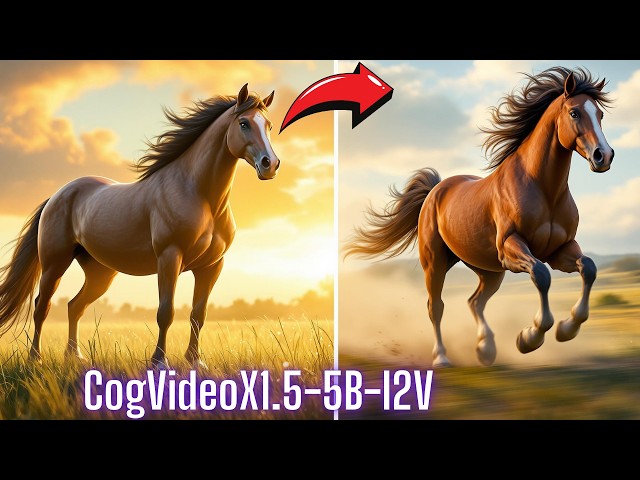











CogVideoX1.5-5B-I2V is the newest open source state of the art image-to-video generation model and it is just working amazing on consumer GPUs. In this tutorial, I will show you step by step with automatic installers, how to install and use this mind blowing model on your Windows computer. Moreover, I will show how to install and use it locally on cloud machines as easy as on your computer. Cloud machines are useful if you are GPU poor or want to scale and speed up your generations. I will cover Machine Learning, the very best and cheapest cloud GPU provider and also RunPod.
🔗 Full Instructions, Configs, Installers, Information and Links Shared Post (the one used in the tutorial)
🔗 MMAudio Installers Used To Generate Sound Effects
🔗 Official Repo
00:00:00 Introduction to the CogVideoX1.5-5B-I2V step by step tutorial
00:01:27 How to download installers and start installing on Windows automatically locally
00:02:11 What are the advantageous of my installers
00:03:29 How to install CogVideoX1.5-5B-I2V on Windows
00:04:19 How to verify installation and save logs in case of any error to report me
00:04:40 How to start the application after installation has been completed
00:05:35 How to use CogVideoX to generate videos from images
00:06:12 How to prompt CogVideoX and example prompts
00:06:26 How to set parameters accurately to generate the best videos
00:06:55 Which resolutions and durations are supported by CogVideoX1.5-5B-I2V
00:07:08 How much VRAM the model requires at which resolution and duration
00:07:36 Why 81 frames not 80 for 5 second video at 16 FPS
00:10:19 How to make video generation speed faster and use lesser VRAM
00:11:37 Where the generated videos are saved
00:12:14 How to install CogVideoX1.5-5B-I2V on Massed Compute and use
00:14:01 How to setup ThinLinc client to access the Massed Compute instance and transfer files between your Computer and Cloud Machine
00:15:03 How to connect initialized machine and start installing CogVideoX1.5-5B-I2V app
00:17:51 How to start multiple application on each GPU to scale your generation speed
00:18:43 How to use application in your computer that is running on Massed Compute
00:19:25 Model download speed on Massed Compute with our installers and app
00:20:35 How to install CogVideoX1.5-5B-I2V on RunPod and use
00:24:19 How to start the app on RunPod and how to utilize multiple GPUs if you want to scale the generation speed
00:26:49 How to download generated videos
Model Introduction
CogVideoX is an open-source video generation model similar to QingYing. Below is a table listing information on the video generation models available in this generation:
Model Name CogVideoX1.5-5B CogVideoX1.5-5B-I2V (Current Repository)
Video Resolution 1360 * 768 Min(W, H) = 768
768 ≤ Max(W, H) ≤ 1360
Max(W, H) % 16 = 0
Inference Precision BF16 (recommended), FP16, FP32, FP8*, INT8, not supported INT4
Single GPU Inference Memory Consumption BF16: 9GB minimum*
Multi-GPU Inference Memory Consumption BF16: 24GB* using diffusers
Inference Speed
(Step = 50, FP/BF16) Single A100: ~1000 seconds (5-second video)
Single H100: ~550 seconds (5-second video)
Prompt Language English*
Max Prompt Length 224 Tokens
Video Length 5 or 10 seconds
Frame Rate 16 frames/second
The CogVideoX model is designed to generate high-quality videos based on detailed and highly descriptive prompts.
The model performs best when provided with refined, granular prompts, which enhance the quality of video generation.
Abstract
We present CogVideoX, a large-scale text-to-video generation model based
on diffusion transformer, which can generate 10-second continuous videos
aligned with text prompt, with a frame rate of 16 fps and resolution of
768× 1360 pixels. Previous video generation models often had limited
movement and short durations, and is difficult to generate videos with
coherent narratives based on text. We propose several designs to address
these issues. First, we propose a 3D Variational Autoencoder (VAE) to
compress videos along both spatial and temporal dimensions, to improve
both compression rate and video fidelity. Second, to improve the text-video
alignment, we propose an expert transformer with the expert adaptive
LayerNorm to facilitate the deep fusion between the two modalities. Third,
by employing a progressive training and multi-resolution frame pack technique, CogVideoX is adept at producing coherent, long-duration, different
shape videos characterized by significant motions. In addition, we develop
an effective text-video data processing pipeline that includes various data
preprocessing strategies and a video captioning method, greatly contributing to the generation quality and semantic alignment. Results show that
CogVideoX demonstrates state-of-the-art performance across both multiple
machine metrics and human evaluations.
-
00:00:00 Greetings everyone. Today I am going to introduce you one of the very best and very latest open
-
00:00:06 source image to video model, CogVideoX1.5-5B-I2V 5 billion parameters. This model has amazing
-
00:00:13 features. It is natively supporting HD resolution and it is working on consumer GPUs with amazing
-
00:00:21 quantization and amazing optimizations. It is supporting 5 second and 10 second videos, and
-
00:00:28 you are able to generate these length videos on your consumer hardware with all the optimizations
-
00:00:35 and the amazing Gradio application that I have prepared for you. With my one click installers,
-
00:00:42 you will be able to install it on your Windows computer and use it locally with all the features
-
00:00:48 and optimizations it has. But not only that, you will be able to use it on Massed Compute our
-
00:00:55 favorite cloud platform with super cheap GPUs and also on RunPod. So, with the installers and the
-
00:01:03 Gradio application that I have prepared, you will be able to use this amazing model. Not only that,
-
00:01:10 I also have prepared demo material for you, example prompts for you. Also,
-
00:01:16 I have tested different resolutions and sharing the results with you so that you can decide the
-
00:01:22 resolution and hyper parameters according to your GPU. So, as usual, I have prepared amazing
-
00:01:30 post where you will find all of the necessary information that you need. This post will be
-
00:01:37 linked in the description of the video, so check below. The latest zip file that you need is
-
00:01:43 located at the top here. However, sometimes it may be missing, so go to the very bottom and download
-
00:01:51 the installers zip file which you need. Moreover, if you want to learn VRAM usages configurations,
-
00:01:59 I have prepared them, download that file and also I have demo material. This demo material
-
00:02:05 will have different images and prompts that you can use and I am going to show them as well. So,
-
00:02:11 what is the advantage of my installer? My installers will install Triton, xFormers,
-
00:02:19 TorchAO and DeepSpeed automatically for you. Therefore, it will be the fastest possible way.
-
00:02:26 It will be seamless installation and it will work super optimized and fast on your computer and also
-
00:02:35 on the cloud platforms that I'm going to show you. For this model, we need to use Python 3.11
-
00:02:43 instead of Python 3.10. I have shown how to have both Python 3.10 and Python 3.11 at the same time
-
00:02:53 in this video, so watch it. If you haven't watched it yet, it is so simple. You can have both of them
-
00:03:00 at the same time on your computer. So, when I open my environment variables and when I go to my path,
-
00:03:07 you will see that I have both Python 3.10 and Python 3.11 both in the user variables
-
00:03:14 and also in the system variables path. Everything is explained in this video,
-
00:03:19 just watch it. My installer will automatically install with Python 3.11 instead of Python 3.10,
-
00:03:27 so you don't need to do anything else. Move the downloaded files into the installation disk that
-
00:03:33 you want. I am going to install into my R drive. So I have generated a folder like this. Do not
-
00:03:40 use space characters or special characters. Paste the installers. I'm going to extract
-
00:03:45 the content here. I will right click and I will say WinRar extract files here. And you see that
-
00:03:52 this folder name has some parenthesis and spaces. I'm deleting them and this is the final folder
-
00:03:58 where I'm going to install. I can also move them to here. For installation, double click windows
-
00:04:03 install.bat file, more info, run anyway. So, it will install everything automatically for you. You
-
00:04:10 don't need to do anything else. However, don't forget to watch these requirements video. This
-
00:04:15 is super important. So, the installation has been completed. Quickly verify if there are any errors
-
00:04:22 or not. If you encounter errors, you need to send them to me. On Windows 11, you can right click here
-
00:04:29 and export as text to send me. On Windows 10, you need to select everything, right click and copy
-
00:04:36 from here or you can CTRL-C and send me the logs. Then return back to your installation folder
-
00:04:42 and all you need to do is double click and start Windows start app bat file, more info run anyway,
-
00:04:50 this will start the application. And the application automatically started. When you
-
00:04:54 first time generate a video, it will download the necessary models into your Hugging Face
-
00:05:01 cache folder. The Hugging Face cache folder is by default here, but you can also set another drive
-
00:05:08 or location. You see all of my cache models here. I have optimized the downloader, so it
-
00:05:13 will download with hundreds megabytes of speed if your internet connection is supporting. Normally,
-
00:05:20 it is limited to 40 megabytes per second. However, I have a special optimization in this application
-
00:05:27 and also in my all other applications that will utilize your entire network speed. So,
-
00:05:33 how we are going to use this model? It is so simple. First of all, select the image that you
-
00:05:38 want to use. Click here. Since we have downloaded demo material, let's also use that. I will extract
-
00:05:45 the demo material, right click and extract all, then enter inside the demo material, you will see
-
00:05:51 the images. You don't need to necessarily resize them. The application will automatically resize,
-
00:05:57 but if you resize, it is better. So, let's use this dragon image as an example. And how you are
-
00:06:03 going to prompt it? The prompting of the image to video models is a mystery. You need to figure out
-
00:06:10 with the experience. However, I have written some example prompts that you can find in the
-
00:06:17 demo folder like this one, so you can use this. Once you set your image and the prompt, there are
-
00:06:23 parameters that you need to pay attention. So, how many number of inference steps, how many frames,
-
00:06:30 what is the resolution of the video that you want, these are the important parameters. When
-
00:06:36 you go to this link, you will see some information that is useful. This is the official page of the
-
00:06:44 CogVideoX1.5-5B-I2V image to video model. You see that it is supporting these video resolutions.
-
00:06:55 They are suggesting to use between 768 to 1,360 pixels. Also, the resolution has to be divisible
-
00:07:05 by the 16. And what about the VRAM usages? These are the VRAM usages of the model according to the
-
00:07:12 number of frames and the resolution. So, as you generate more frames, it will be slower and it
-
00:07:17 will use more VRAM. Also, as you increase the resolution, it will be slower and it will use
-
00:07:23 more VRAM. Since I have RTX 3090 on my computer, I have 24 GB of VRAM. Therefore, I can use the
-
00:07:32 best resolution and 81 frames. Why 81 frames and not 80? Because plus one frame is coming from
-
00:07:41 image input. So, since I am going to get 16 FPS, the 81 frames will give me 5 second video. So,
-
00:07:51 you can also generate 10 second videos with this one. How to? It would be 161 frames. So,
-
00:07:58 this one will generate 10 second video. However, remember, it will use more VRAM. So, you may
-
00:08:04 be needed to reduce the resolution. So let's generate an image with the uploaded resolution.
-
00:08:12 What was the resolution? It is 1,360 to 768. 1360 to 768. When you use these sliders,
-
00:08:24 they are set to be 16 by 16, so you can also use these to set them. Let's generate 5 second video.
-
00:08:32 We don't want to wait forever and that's it. You can also set the FPS to 8. If you set output
-
00:08:39 FPS to eight, you will get 10 second video with the number of frames 81. Okay, let's try the 16
-
00:08:46 and let's generate video. When you first time generate video, it will download all the models
-
00:08:52 into the Hugging Face cache folder as I said. But since I already have them, it is immediately
-
00:08:58 loading them to my GPU. Since we are using all kind of quantizations and CPU offloading,
-
00:09:06 you better have high amount of RAM memory. If you don't have high amount of RAM memory, you need to
-
00:09:13 set virtual RAM memory. I have a tutorial that I'm showing how to set virtual RAM memory. And you can
-
00:09:19 also follow any tutorials on the internet, but I strongly recommend you to get 64 GB of RAM memory.
-
00:09:28 With that way, all of the AI applications will run faster and better. So, the generation has started.
-
00:09:35 Currently, I'm using 20.7 GB of RAM memory. It is a little bit slow with this resolution. So,
-
00:09:43 if you don't have a very powerful GPU like RTX 4090, this may take a lot of time. On RTX 4090,
-
00:09:51 this is taking like 20 minutes, but on my GPU, it will take like 40 minutes. Because
-
00:09:58 my GPU is half speed of the RTX 4090. But I can reduce the resolution and I can make it faster,
-
00:10:05 which I'm going to do right now. Unfortunately, there is no stop button, so you need to close and
-
00:10:10 start again. This is because of the nature of the pipeline, the application itself, not related to
-
00:10:16 me. I can use the same window. So, what I'm going to do is, I'm going to reduce the resolution. So,
-
00:10:22 I'm going to use one of the resolutions here. Let's say 768 to 432. It will automatically
-
00:10:29 resize the image, don't worry and generate video. You can also generate multiple videos. They will
-
00:10:36 be generated with order and every generated video will be saved automatically. So, don't worry about
-
00:10:42 that. So, you can set this any number and it will generate new different videos with the same prompt
-
00:10:48 by using a different seed automatically for you. Let's see the generation speed of this one. So,
-
00:10:54 you see, this one is using very low amount of VRAM and it will be very faster. Let's see. Okay,
-
00:11:01 this is going to take less than 8 minutes. It is getting faster. You see, it is decreasing 7
-
00:11:07 minutes. So, it will be really fast. If you have a more powerful GPU, it will be even faster. I
-
00:11:12 am waiting RTX 5090. On the first day hopefully, I will purchase it and I will make comparisons.
-
00:11:19 I will make new videos. So, keep following me. Okay, so the video has been generated. However,
-
00:11:24 the Gradio interface failed to update because we had, if you remember, restarted the application,
-
00:11:33 therefore we didn't refresh this page, so it didn't update. However, it is not an important
-
00:11:38 issue because when you go to the open outputs folder, it will open the outputs folder like this.
-
00:11:45 So, our video is saved here. We can double click and play it like this as you are seeing right now.
-
00:11:52 Okay, it is decent. So, up to your prompt and your trials, you will get the best video that you need.
-
00:11:58 It will require some testing, but you will get it eventually. And it was completed in 7 minutes. So,
-
00:12:04 if you have a more powerful GPU like RTX 4090, it will take like 3 minutes for this resolution
-
00:12:11 and this many frames and it is amazing. So, now I will show how to use this amazing model on cloud.
-
00:12:18 If you don't have a powerful GPU or if you want to scale the generation with multiple GPUs. You
-
00:12:24 cannot combine multiple GPU power, but you can start the application on each GPU separately and
-
00:12:30 you can generate multiple videos at the same time. So, I will begin with Massed Compute.
-
00:12:36 This is better than the RunPod, especially the installation is very faster. Please register
-
00:12:42 by using this link. I appreciate that. Set your billing, set your some credits, then go to the
-
00:12:48 deploy. Unfortunately, recently, Massed Compute is very, very busy. They are trying to add more GPUs.
-
00:12:56 Hopefully, they will add and they are going to give us a new coupon code for L40 soon. So, what
-
00:13:02 I recommend is selecting RTX A6000 and applying the my coupon which is SECourses. Once you apply
-
00:13:11 that, you will get RTX A6000 GPU for 31 cents per hour. Currently it is not available, so I will go
-
00:13:18 with L40. Hopefully, we will get a coupon for this and the price will be reduced very soon. So, from
-
00:13:25 category select creator, from image, select our image. This is super important and you are going
-
00:13:31 to apply new coupon for L40 and when you have RTX A6000, apply SECourses. So let's deploy 2 GPUs,
-
00:13:39 so I can show you how to start with 2 GPUs. Deploy. But it is not mandatory. You can also
-
00:13:44 use it with 1 GPU. Hopefully, we are also going to update our image and the initialization will be
-
00:13:52 faster, the image will become better, more up to date with better libraries very soon. But it is
-
00:13:59 currently also working very well. If you are using the Massed Compute first time, you will see there is
-
00:14:04 ThinLinc Client here which you need to set. In the previous tutorials, I have shown this so many
-
00:14:10 times. Download according to your platform. I am on Windows, start it with clicking it. Click yes
-
00:14:17 when it asks. Click next. Accept, next, next, that's it and run the ThinLinc client. Now we need
-
00:14:24 to wait initialization. Meanwhile, you can also set your synchronization folder for transferring
-
00:14:30 files, which I recommend. Go to options. Go to local devices, uncheck all and just check drives,
-
00:14:36 details, remove whatever is here. Click add, click this three dots icon or go to the folder
-
00:14:44 where you want to set. For example, I am using this folder, let me show you, mass_compute, this
-
00:14:49 is a folder that I have generated myself. Copy it, paste it here, select read and write. Okay,
-
00:14:56 okay, and that's it. Just wait for initialization. Okay, so the machine has been initialized. You see
-
00:15:02 it is running. How we are going to connect? Copy this, open the ThinLinc client and paste it, copy the
-
00:15:10 username as Ubuntu. You see here and copy password and that's it. Then click connect. Click continue,
-
00:15:18 wait until you get this window, click start. And from this window now, we can command and
-
00:15:26 control the remote machine. This is running on the Massed Compute, not on my computer. So, how
-
00:15:33 we are going to install? Download the attachment zip file from here or from the very bottom here.
-
00:15:40 Move that file into your synchronization folder. You can also download that file from the inside
-
00:15:47 of Massed Compute. So my synchronization folder is here. I will paste it there, then go to the
-
00:15:52 home and inside home drive. Go to the thindrives and you will see your synchronization folder
-
00:15:59 here, enter inside it. This may take a while to load. Then drag and drop the downloaded zip file
-
00:16:04 into downloads like this. Do not run anything on the thindrives. Always copy paste it into the like
-
00:16:10 downloads folder, then right click and extract here. You see this folder name has now brackets,
-
00:16:17 so I'm going to delete it and I'm going to rename it like this. So,
-
00:16:19 make sure that your folder names do not have space characters or special characters. Enter inside it,
-
00:16:26 then double click Massed Compute instructions. Copy the installation command. Go back to the
-
00:16:31 folder where you have extracted. Click three dots, open in terminal, right click and paste. This will
-
00:16:38 install everything automatically for you. If any of the scripts get broken, just message me and I
-
00:16:46 will hopefully fix the issues as soon as possible. Moreover, do not use synchronization folder for
-
00:16:53 big file transfer. It will not work. You can use your Google Drive, you can use Hugging Face,
-
00:16:59 you can use One Drive. Anything for big files, but for small files, it will work. Just wait for
-
00:17:05 installation to be completed. The installation and downloading models on Massed Compute is just ultra
-
00:17:12 fast. You will see it. Because I am using specially crafted download scripts. So, the installation on
-
00:17:20 Massed Compute has been completed. Quickly scroll to the top to see if there are any errors or not.
-
00:17:26 If there are errors, just report back to me and hopefully, I will fix it immediately. Then open
-
00:17:33 back the Massed Compute instructions, copy and paste it into a new terminal like this and it
-
00:17:40 will start. However, since we have 2 GPUs on this machine, let me show you nvitop and you can
-
00:17:47 see we have two GPUs to be able to use both of the GPUs. We need to slightly edit this command
-
00:17:54 like this. export CUDA_VISIBLE_DEVICES=0 So, the first instance will start
-
00:18:03 on the first GPU. This is not mandatory, but this is how you can scale your generation. So,
-
00:18:09 you can generate multiple videos. Paste it. It will start the application. I also have updated
-
00:18:16 our Patreon post and added the command, so you can copy paste it easily from here. So, check
-
00:18:23 this part as well. Then I will make this as Cuda visible devices 1. Copy this and open another
-
00:18:31 terminal in the downloaded and installed folder. Paste it and it will start the second application.
-
00:18:37 So, from this window. Let's go back to here. Okay, the first application has been started and opened.
-
00:18:43 Copy this link. Now you can use this link in your computer. You don't need to use it inside ThinLinc
-
00:18:50 client because it is slow. The usage is exactly same as in the Windows tutorial part. Let's load
-
00:18:58 an image like this. Let's go back to our prompts and let's use the hero as an example. Okay,
-
00:19:04 let's use 1360 or whatever the resolution. 1360 will be slower and that's it. Let's generate
-
00:19:11 video. If you are going to use double GPU, wait for first generation to start. Because when you
-
00:19:18 first time generate a video, it will download the models. Let's look at the download speed. Okay, so
-
00:19:26 we can see it right now. Yes, you are seeing that over 1 GB per second, 1,000 megabytes per second,
-
00:19:34 500 megabytes per second. It is just super, super fast. This is why Massed Compute is very popular
-
00:19:41 recently. And these speeds are only available because I have optimized my script. Otherwise,
-
00:19:48 it would be limited to 40 megabytes per second. So, you see, now we are getting like 20 30 times
-
00:19:54 faster download speeds and the downloading has been completed. So, I can also start a
-
00:20:00 video on my second GPU. I can open the link in my computer with copy pasting into my browser,
-
00:20:08 select the image and type the prompt and generate video like this. Okay, and that's it. So, you will
-
00:20:16 be able to download videos from this interface once generated or the generated videos will be
-
00:20:23 inside Cog video folder, the installed folder and inside outputs folder. The rest of the usage is
-
00:20:29 exactly same as in the Windows tutorial part. So, please watch that part. To learn more. Okay, now
-
00:20:35 I will show you how to use this amazing model on RunPod. Please use this link to register. It helps
-
00:20:41 me significantly. After registering, login. Go to your billing from here and set up your balance,
-
00:20:48 then go to the Pods and click deploy. If you are going to use your machine for a long time,
-
00:20:55 I recommend to use community cloud because it will be way cheaper. However, initial setup will be way
-
00:21:02 slower because the community cloud machines have very, very slow hard drives. So, for this tutorial
-
00:21:08 purposes, I'm going to use secure cloud and let's use 2x RTX 4090. So, I will use Texas 3 as a data
-
00:21:16 center. This is not mandatory, but it is working fast. Select the GPU like this, RTX 4090, make it
-
00:21:22 2. Okay, it is available. The template. This is super important. The template may get updated. So,
-
00:21:29 always open the RunPod instructions txt file and look at the recommended template. So, this is the
-
00:21:37 recommended template right now. So, from here, change template, type torch like this. And select
-
00:21:42 the RunPod Pytorch 2.4. This is Python 3.11. It is working great. And click edit template,
-
00:21:51 set your volume disc like 100 GB and set override and click deploy on demand. Now go to my Pods,
-
00:21:59 and wait for initialization. Since this is official template and it is lightweight,
-
00:22:04 it is very fast to get initialized. Okay, it is done. Click connect, connect to Jupyterlab.
-
00:22:10 If this doesn't load like this, just wait a little bit and click again. If still not working,
-
00:22:15 refresh this page because it may happen sometimes. then click connect and connect to Jupyterlab
-
00:22:22 like this. And it will be opened as you are seeing right now. Just wait for entire page to be loaded.
-
00:22:29 If it doesn't load, just refresh. Sometimes it may never load. In that case, you should open the.
-
00:22:35 link in the private window. So, I will open it in the private window. Okay, if you get this error,
-
00:22:42 right click and copy link address. Open in private window. Yes, still we are not getting
-
00:22:47 it. Maybe the Pod is broken or some error. Yeah, this Pod may be broken. This is the issue with
-
00:22:55 the RunPod. Always Pod you got could be broken, unfortunately. Okay, I'm going to make another
-
00:23:01 deployment. Let's select another data center. Okay, there is this one. Let's make 2. Okay,
-
00:23:06 the template selected. Let's edit the template, 100 GB, set override and deploy on demand. Let's
-
00:23:14 go to my Pods. I'm going to delete the other one, stop. You need to delete the Pod. Otherwise,
-
00:23:19 it will still use your credits. Terminate. Okay, let's just wait. Yeah, this is not a great one
-
00:23:24 either. You see, speeds are not that great. Okay, let's click connect. Connect to Jupyterlab
-
00:23:29 interface. Okay, this one loaded. Now I am going to upload. the zip file that I have downloaded
-
00:23:36 from the Patreon. Click this icon and upload the zip file like this, wherever you have downloaded,
-
00:23:42 right click and extract archive. Just refresh. Remember the zip file is in the attachments here
-
00:23:50 or it is in the here. Okay, then open the RunPod instructions txt file. Copy this installation,
-
00:23:59 open a terminal from here, here, copy paste it and that's it. It is going to install everything
-
00:24:05 automatically for you. Just wait for installation to be completed. So, the installation on RunPod
-
00:24:11 has been completed. Quickly verify whether there are any errors or not. If there are errors, you
-
00:24:16 need to copy it and message me. Then how we are going to start it? Go back to the RunPod instructions
-
00:24:22 txt file. Copy this and that's it. Just copy paste it and it will work. However, since I have got
-
00:24:28 two GPUs on this machine, let me show you. Open terminal, pip install nvitop like this, then just
-
00:24:37 type nvitop like this. So, you see, I have two RTX 4090 on this machine. I want to utilize both of
-
00:24:45 them for that, I need to use this command, export CUDA_VISIBLE_DEVICES=0. This will start
-
00:24:54 this application on the GPU zero, open a new terminal, copy paste it. Okay, the copy paste
-
00:25:01 didn't work. So, I will right click and paste, allow and that's it. Okay. So, this will start
-
00:25:07 first application on the first GPU. I also have updated our Patreon post and added the command,
-
00:25:15 so you can copy paste it easily from here. So, check this part as well. Then I will make this
-
00:25:21 Cuda visible devices as one, copy this command, open a new terminal, paste it and hit enter. Now,
-
00:25:28 this second application will start on the second GPU. This way, I will be able to generate two
-
00:25:35 videos at the same time simultaneously. Okay, the first one started. Let's open it. First of all,
-
00:25:41 run the. first generation on first GPU because it will download models. Once the models downloaded
-
00:25:48 and the generation started, then you can start the generation on the second GPU as well. So, the
-
00:25:54 usage is exactly same as in the Windows tutorial part. Let's select this image and let's go back to
-
00:26:01 our prompts. And let's use this moon prompt. Set the resolution as you wish. For example,
-
00:26:07 1360 to 768. This GPU is very powerful and generate video. And the rest is same. So, how you can
-
00:26:17 download the generations? The generations will be displayed here. However, for any reason if fails,
-
00:26:23 go to the Cog video and you will see outputs folder here and from there you will be able
-
00:26:28 to download. So, currently it is downloading the models. I am optimizing scripts to use the
-
00:26:35 maximum possible network speed the RunPod has. So, this is the maximum speed we are able to get
-
00:26:41 right now. If my scripts were not optimized, it would be way, way slower than this. So, once the
-
00:26:47 generation has been completed. You can click this icon to download video to your computer. Moreover,
-
00:26:55 it will be saved in the outputs folder inside Cog video as you are seeing right now. So, go to Cog
-
00:27:01 video and right click output and download as an archive and it will be downloaded fast. Once you
-
00:27:09 are done with your Pod and once you have saved everything, stop your Pod. You can also resume
-
00:27:15 this, but this will still use your credits. If you don't want your credits to be wasted, you
-
00:27:21 need to terminate it. But make sure that you have downloaded everything and terminate and that's it.