You can choose automatic installation via script or manual setup.
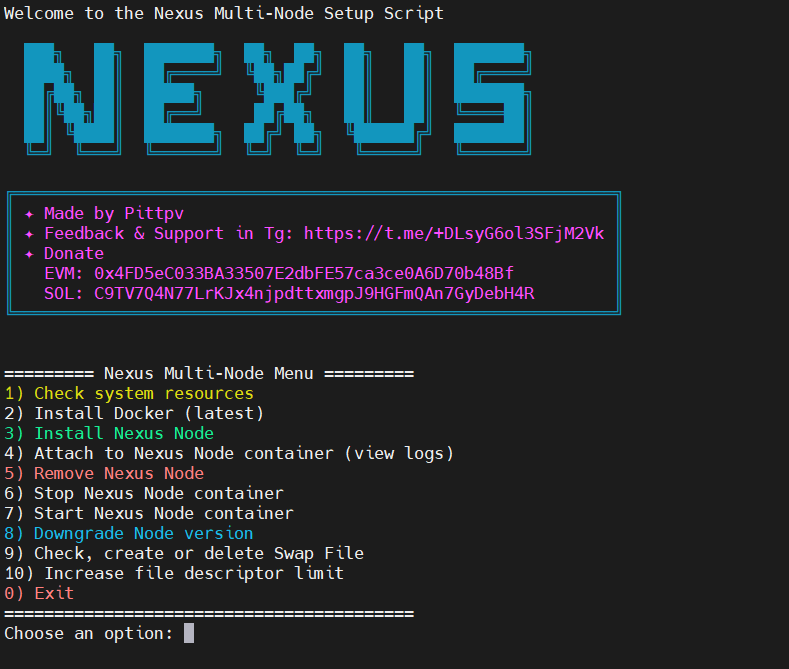
Just run this one-liner in your terminal (first install or update):
curl -o nexus3.sh https://raw.githubusercontent.com/pittpv/nexus-node/refs/heads/main/nexus3.sh && chmod +x nexus3.sh && ./nexus3.shFor future runs:
cd $HOME && ./nexus3.shWhen installing the node(s), the script will:
- Ask for your Telegram
TG_TOKEN,TG_CHAT_IDand validate it; - Ask for batch
NODE_IDupload or manual entry; - Create separate
nexus-nodes/andwatchtower/directories in your$HOME; - Set up
.envanddocker-compose.ymlfor Nexus; - Set up
.envanddocker-compose.ymlfor Watchtower; - Let you start/stop/remove containers via an interactive menu.
If Watchtower is already configured, the script will ask before overwriting.
- Added a downgrade feature (option 8)
- Downgrade of multiple nodes is supported
- Choose
lastestto restore automatic updates.
📅 Version History
- Added support for creating multiple Nexus nodes
- Batch loading of node IDs via the
nexus-nodes.txtfile or manually --max-threadssetting- Convenient node identification on the server—the node ID is added to the container name and folder
- Batch loading of node IDs via the
- Added batch node management
- Delete all nodes at once or a specific one
- Start/stop all containers at once or a specific one
- Check and display container status (running ✅, stopped ❌)
- New log viewing mechanism based on tmux. Thanks to @leznoxx (Discord) for the function idea
- View up to 4 containers on one screen (in one session). The number of sessions is unlimited.
- Supports navigation between tmux sessions when dealing with more nodes. One tmux session = 4 containers.
- Convenient usage instructions displayed right before launching log viewing. Exit log viewing with
Ctrl+BthenD.
- Minor UX improvements
- Added a function to check machine resources and calculate recommended value for --max-threads parameter. Thanks to @leznoxx (Discord) for the function idea
- Updated main menu order
- Minor UX improvements
- Added multi-thread support
--max-threadsto node installation function (for powerful machines)- Value is saved to .env file
- Added automatic download of latest Nexus image and Watchtower during node installation
- Added a Docker installation check before setting up the node (for users who are unsure whether Docker is installed on their system).
- Enhanced the create/delete swap file function for compatibility with both WSL and standard Ubuntu.
- Added the function of creating and deleting a swap file.
- You can create a file of 8, 16, 32 GB.
- It will show if the file already exists and its size.
- Added the function of increasing ulimit (file descriptor limit)
- Increases for the current session to a maximum value of 65535
- Shows the previous limit
Improvements:
- After exiting the container view, the terminal is cleared and returns to the menu.
- When deleting a node, there is an additional prompt to delete Watchtower (can be skipped if it's used by other containers).
- Watchtower container is removed from Stop/Start—the command now only applies to the node container.
- Added a function to view the node container
- Minor improvements
⚠️ Prerequisite: Make sure Docker and Docker Compose are installed on your system. You can follow this guide to install Docker and dependencies if you don't have it installed yet.
mkdir nexus && cd nexusdocker pull nexusxyz/nexus-cli:latest- Open the Nexus web app in your browser and Sign in.
- Click Add Node → Add CLI node.
- Copy your Node ID – it will look like a long alphanumeric string.
Inside the nexus/ directory, create:
services:
  nexus-cli:
    container_name: nexus
    restart: unless-stopped
    image: nexusxyz/nexus-cli:latest
    init: true
    command: start --node-id NODE_ID
    stdin_open: true
    tty: true
    labels:
      - com.centurylinklabs.watchtower.enable=true
🔁 Replace
NODE_IDwith the value you copied in Step 3.
mkdir watchtower && cd watchtowerservices:
watchtower:
image: containrrr/watchtower
container_name: watchtower
restart: unless-stopped
volumes:
- /var/run/docker.sock:/var/run/docker.sock
environment:
- WATCHTOWER_CLEANUP=true
- WATCHTOWER_POLL_INTERVAL=3600
- WATCHTOWER_NOTIFICATIONS=shoutrrr
- WATCHTOWER_NOTIFICATION_URL=telegram://TG_TOKEN@telegram?channels=TG_CHAT_ID
- WATCHTOWER_INCLUDE_RESTARTING=true
- WATCHTOWER_LABEL_ENABLE=true🛡️ Replace
TG_TOKENandTG_CHAT_IDwith your Telegram bot token and chat ID.
From each folder (nexus/ and watchtower/), run:
docker compose up -d# Show running containers
docker ps -a
# Show watchtower logs
docker logs -f watchtower
# Show Nexus logs (for one node setup)
docker attach nexus
# Exit from container viewer (for one node setup)
Ctrl+P then Ctrl+Q
# tmux exit from container viewer
Ctrl+B then D
# Restart a container
docker restart nexus
# Stop and remove containers
docker compose down
# Recreate containers
docker compose up -d
Cause: Your user is not part of the docker group.
Solution: Run the following command and restart the terminal (WSL):
sudo usermod -aG docker $USERCause: Not enough RAM available.
Solution:
- Use latest update of Nexus
- Run the node on a machine with more available memory.
- Partial workaround:
- Create a swap file
- Increase
ulimitlimits
You can do both using option 7 and option 8 in the script.
Your Nexus node is now:
✅ Running via Docker Compose
✅ Automatically updated via Watchtower
✅ Sending update notifications to Telegram
Enjoy smooth and reliable operation! 🚀
If you have any questions, feel free to reach out to me on the Nexus Discord server by mentioning @pittpv. Here’s the invite link: https://discord.gg/yCg6b7W7Zd
Official docs: https://docs.nexus.xyz/layer-1/testnet/testnet-3