

Many developers are forced to use jupyterlab\jupyterhub during work, without the ability to use VSCODE. Our comrades from coder have done a great job to make it possible to use VSCODE through a browser. My job is left to make these two technologies friends and provide the ability to quickly and conveniently launch both of these applications.
This library works in tandem with the jupyter-server-proxy library, which in turn allows you to create additional servers inside Jupyter.
| VSCode button | Web Code Server (proxy) |
|---|---|
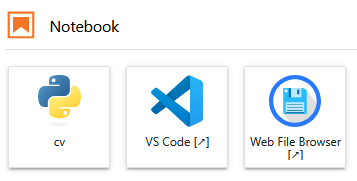 |
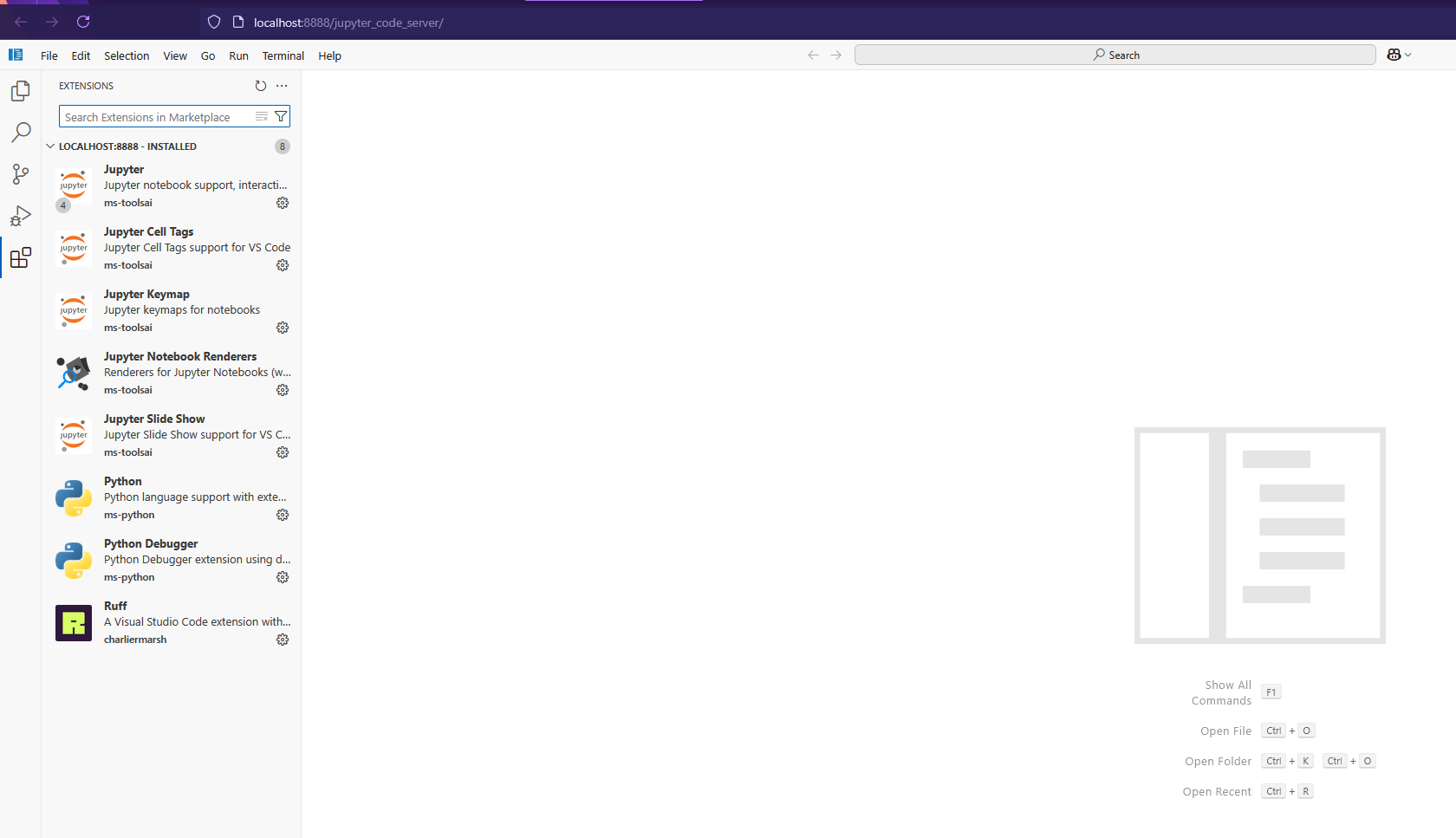 |
Just run the installation from pypi and enjoy After installation, be sure to restart the server (if it is running in docker, then restart docker)
pip install jupyter_coder_serverBy default, this library installs the latest version of code-server on your device in the ~/.local/lib directory
Installing a specific version of code-server
To do this, you need to set env CODE_SERVER_VERSION CODE_SERVER_VERSION - lataset by default Since version search is controlled by github tags.
Installation example tag_name "v4.99.1"
CODE_SERVER_VERSION=v4.99.1 jupyter_coder_server --installusage: jupyter_coder_server [-h] [--version] [--install] [--install-from INSTALL_FROM] [--install-server] [--install-extensions] [--install-settings] [--install-filebrowser] [--patch-tornado] [--remove] [--remove-server] [--remove-filebrowser]
options:
-h, --help show this help message and exit
--version show program's version number and exit
--install Install coder-server, extensions, settings and Web File Browser
--install-from INSTALL_FROM
Install coder-server, extensions, settings and Web File Browser from jupyter-coder-extensions.zip
--install-server Install coder-server
--install-extensions Install extensions
--install-settings Install settings
--install-filebrowser
Install Web File Browser
--patch-tornado Monkey patch tornado.websocket
--remove Remove coder-server and Web File Browser
--remove-server Remove coder-server
--remove-filebrowser Remove Web File BrowserFor environments without internet access, you can build an archive with all dependencies and install from it.
On a machine with internet access, clone the repository and build the archive:
git clone https://github.com/MiXaiLL76/jupyter_coder_server.git
cd jupyter_coder_server
make build_ext
This will create jupyter-coder-extensions.zip containing:
- code-server binary
- filebrowser binary
- All VSCode extensions (Python, Jupyter, Ruff, Continue, etc.)
Copy jupyter-coder-extensions.zip to your target machine and install:
pip install jupyter_coder_server
jupyter_coder_server --install-from jupyter-coder-extensions.zip
This will:
- Extract the archive to a temporary directory
- Install code-server, filebrowser, and all extensions from the archive
- Configure settings and patch tornado
- Clean up temporary files
After installation, restart your Jupyter server to see the changes.
- Linux amd64
- Installed CURL
For more details see here
Since the code-server project has an MIT license, I also use it in this project.
@article{jupyter_coder_server,
title = {{jupyter_coder_server}: VSCODE integration in jupyter-lab},
author = {MiXaiLL76},
year = {2024}
}